Step 1: Create an app under a Facebook Developer Account.
Note: You can skip this step 1 if you have already created an app and using Facebook SDK Integration for your website.
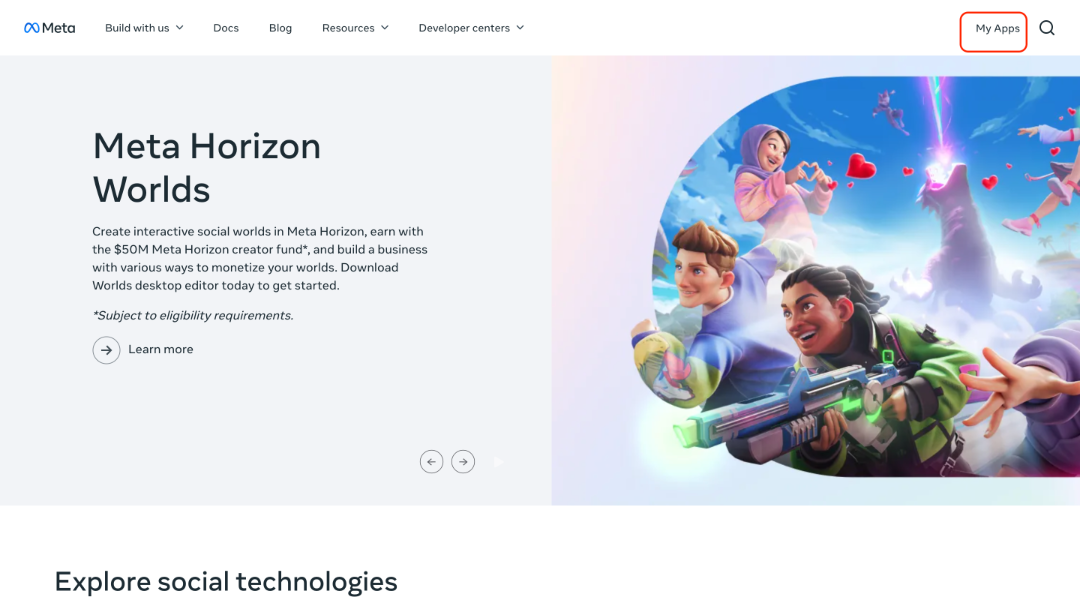
- Go to https://developers.facebook.com/
- My Apps
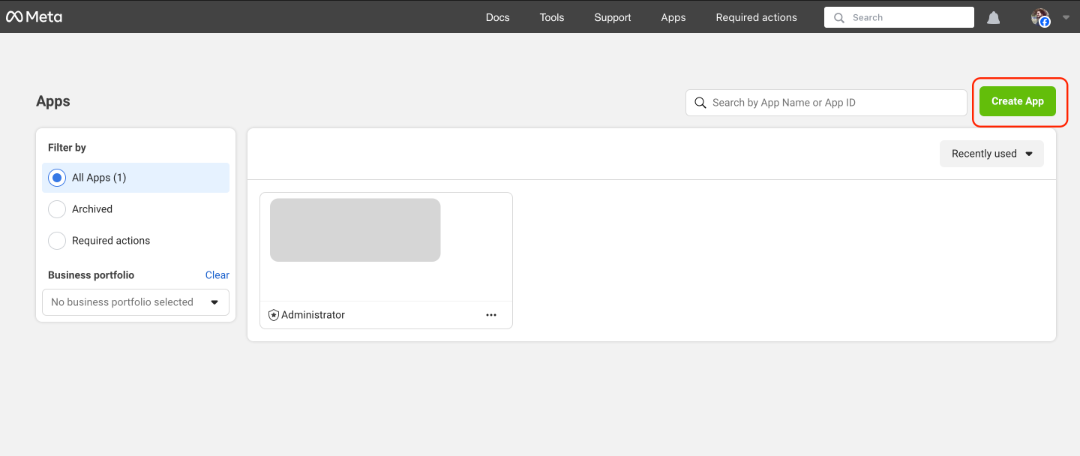
- Create App
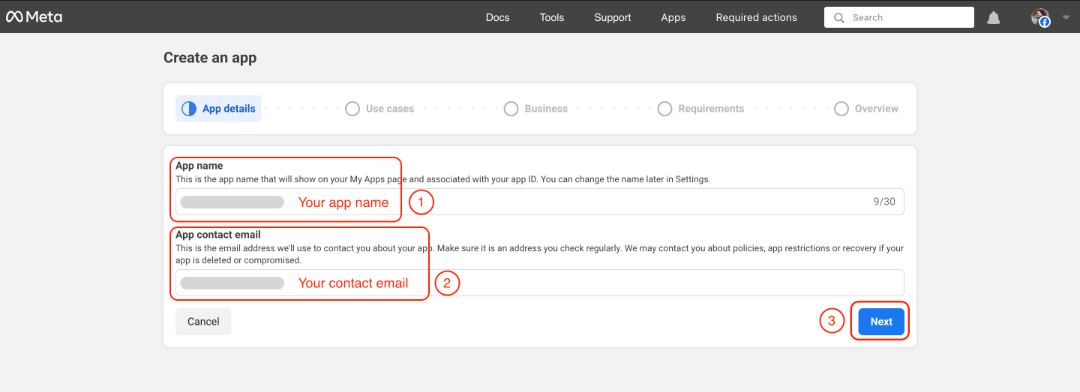
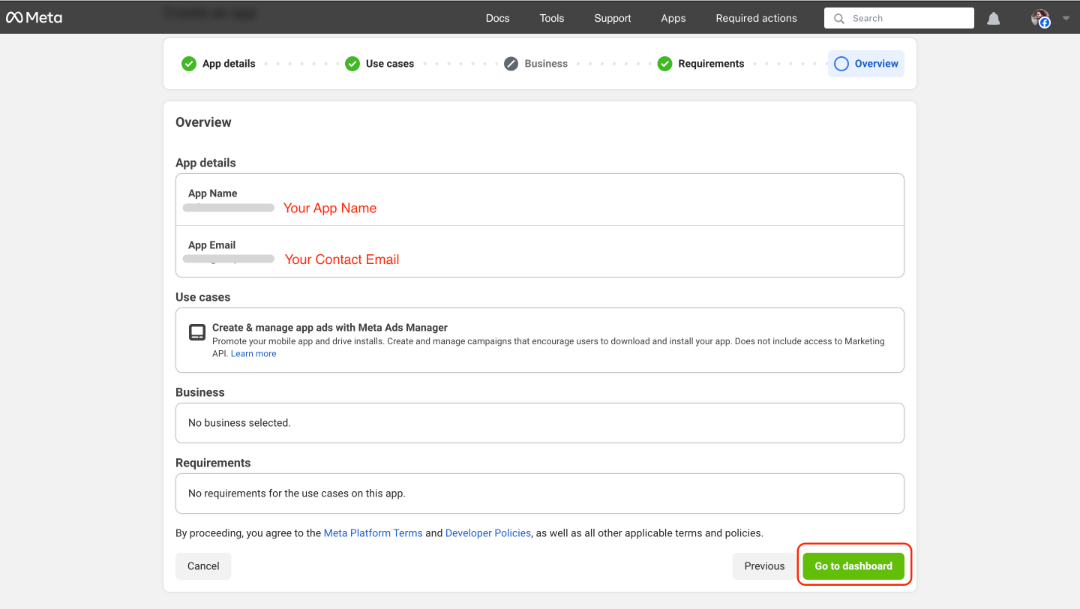
- Your app name
- Your contact email
- Next
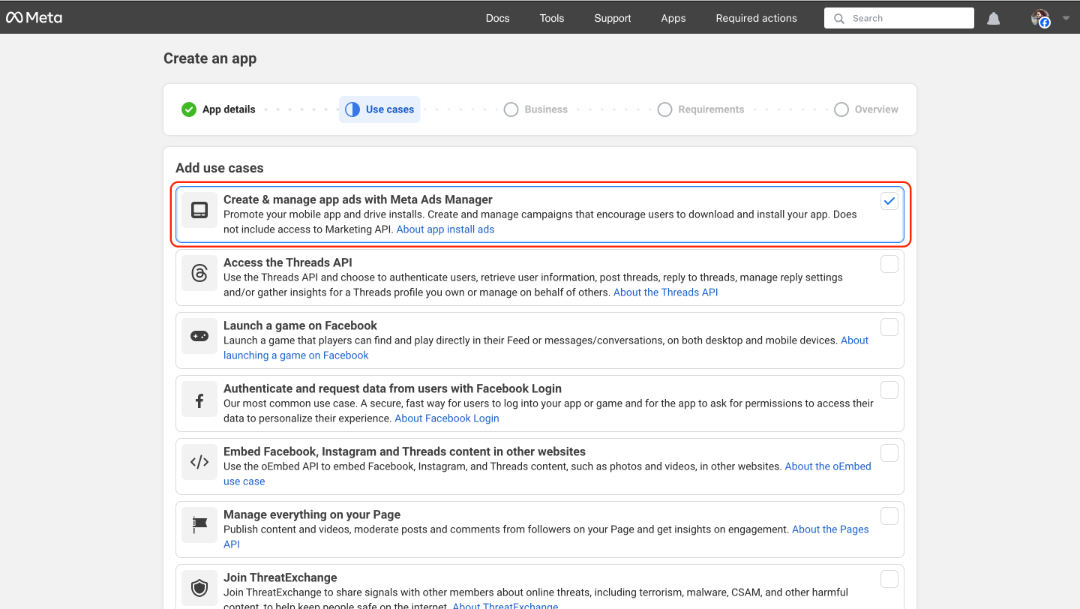
- Indicate your use case to Create & manage app ads with Meta Ads Manager
- Next
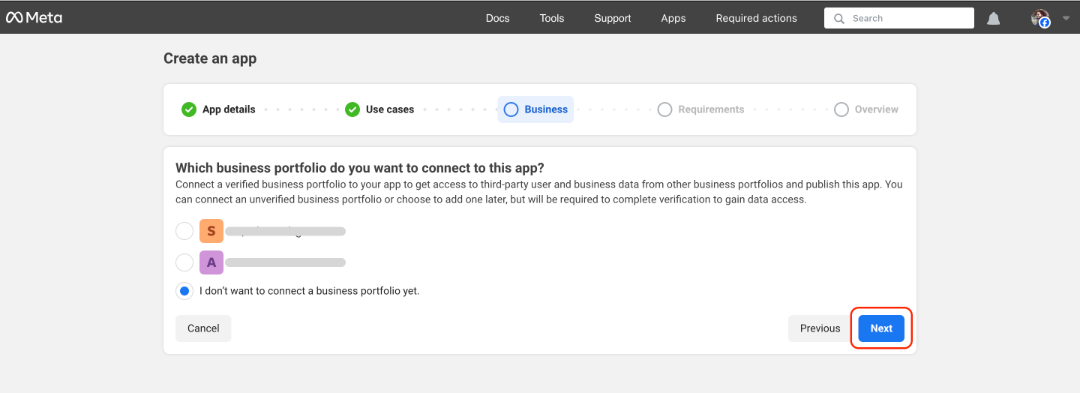
- Connect your business portfolio if you have one.
- or skip with I don't want to connect option
- Next
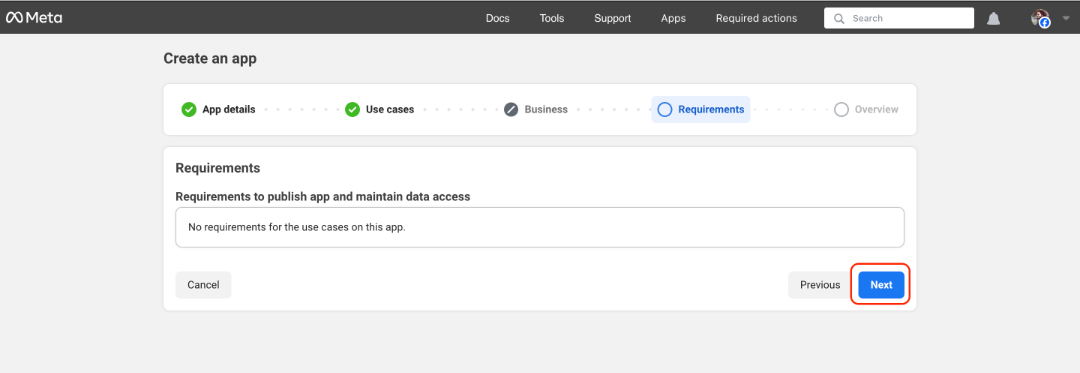
- Next (Requirements)
- Check overview
- Go to dashboard
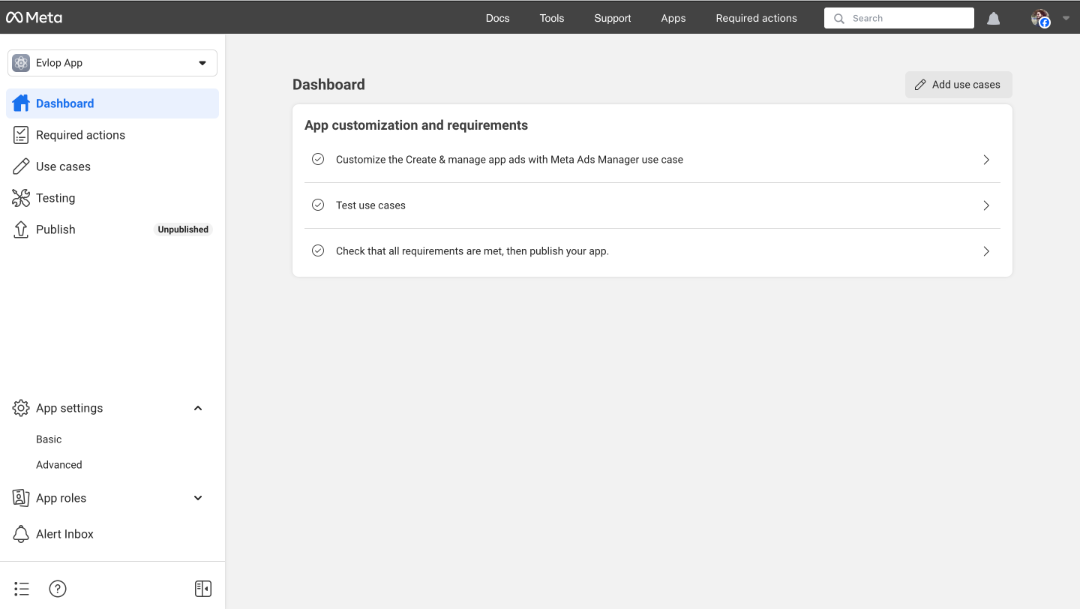
Step 2: Complete Basic configurations.
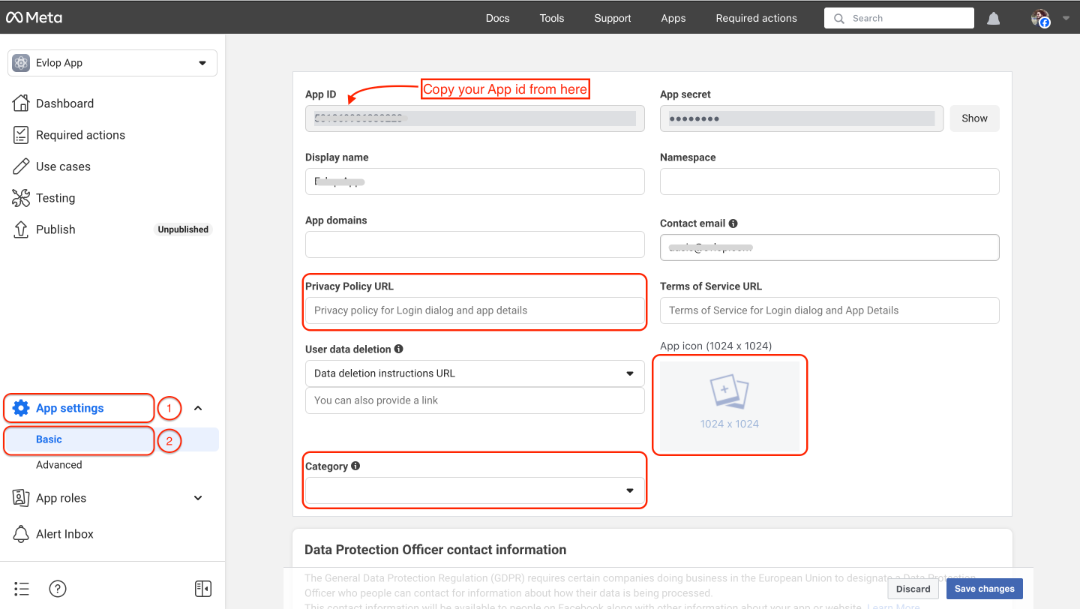
Note: Copy the App ID from this section, which is required for the integration with Evlop app.
- Go to App Settings
- Select Basic
- Update Privacy policy URL
- Update the App icon.
- Select your business category
- Complete the necessary fields
- Save the changes
- Provide Data Protection Officer contact information for GDPR if you're doing business in the European Union.
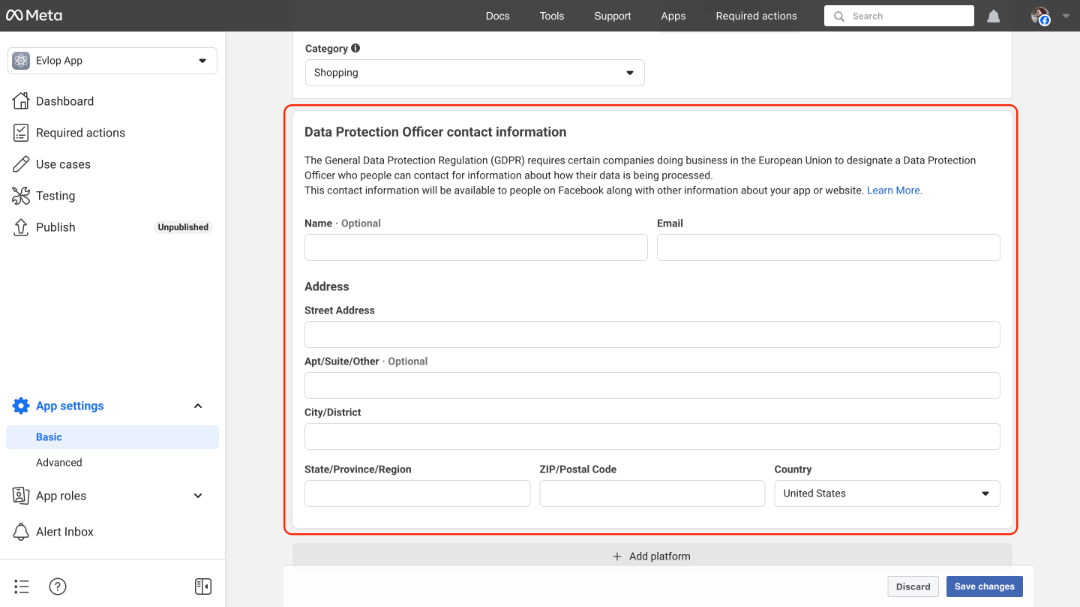
- Save changes
Step 3: Add Platforms
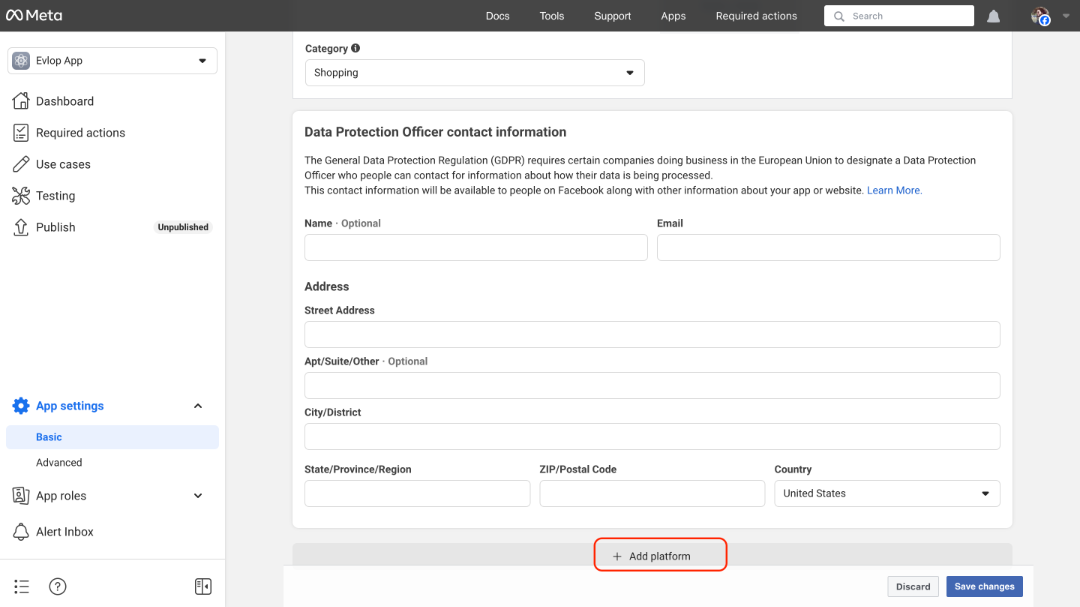
- Add platform (from the bottom of the Basic page of an App Settings)
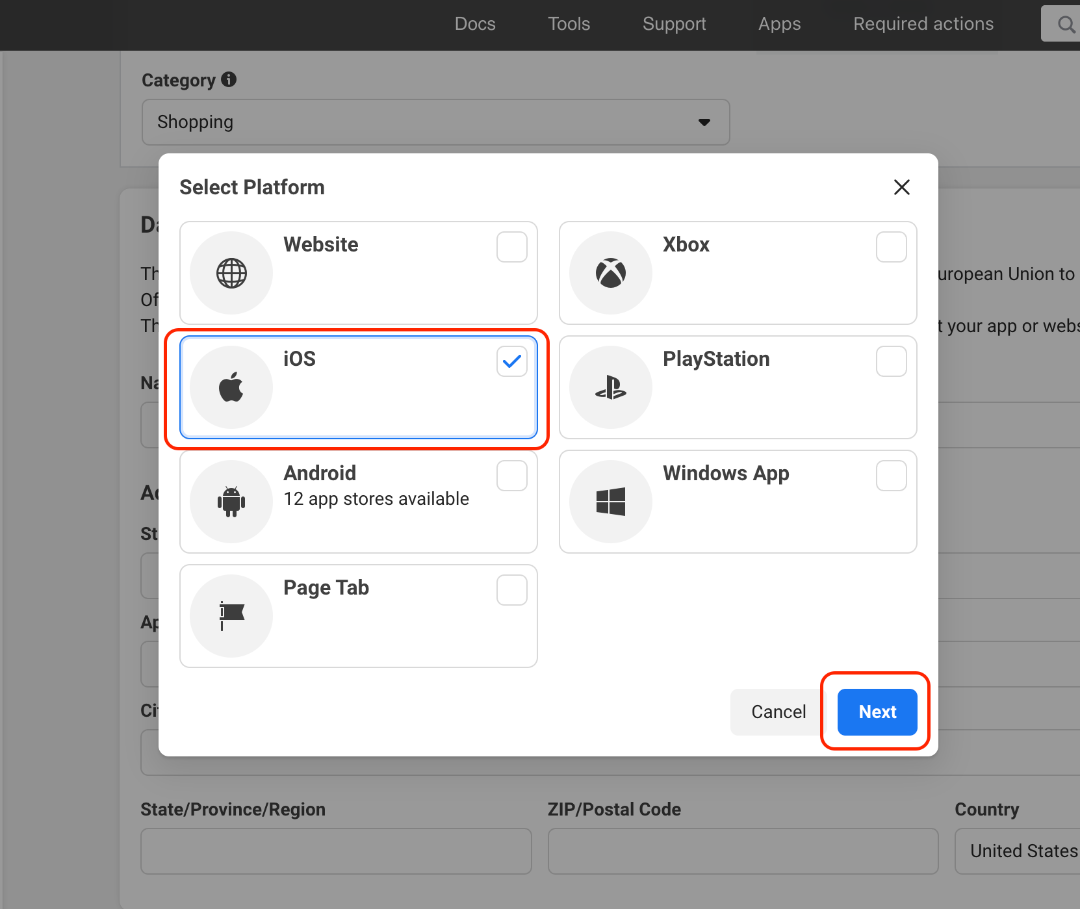
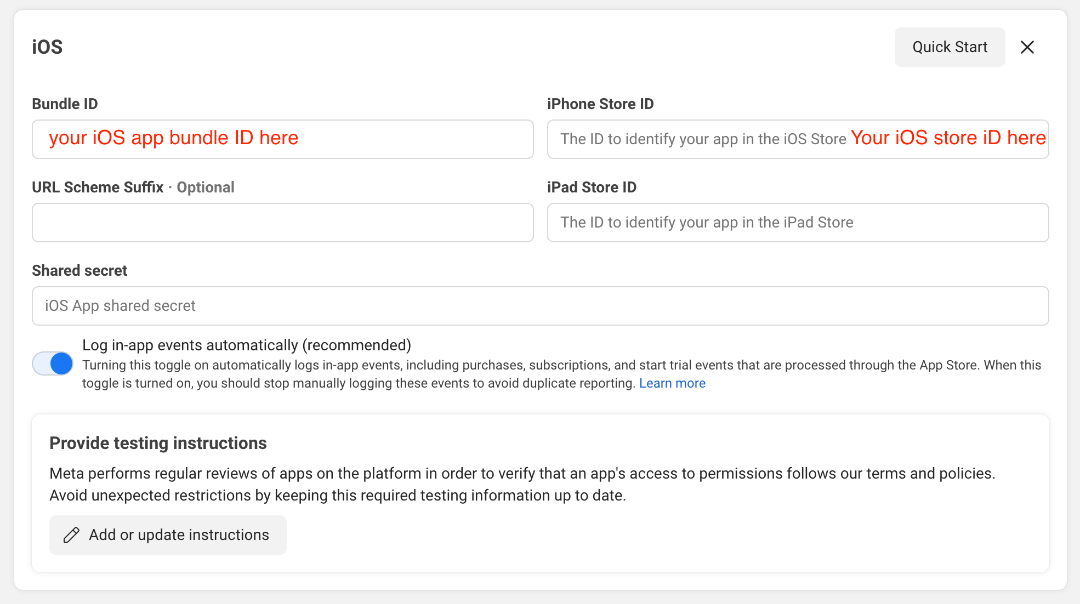
A: Add an iOS app platform.
- Select the iOS platform.
- Next
- Fill up your iOS app bundle ID
Appstoreconnect> Select App> General> App information> Bundle ID
orEvlop mobile app's shopify dashboard> App settings> App info> iOS Bundle Identifier - Fill up iPhone Store ID
apps.apple.com/us/app/your-app-name/id000000000. The app's store ID is 000000000 - Save changes
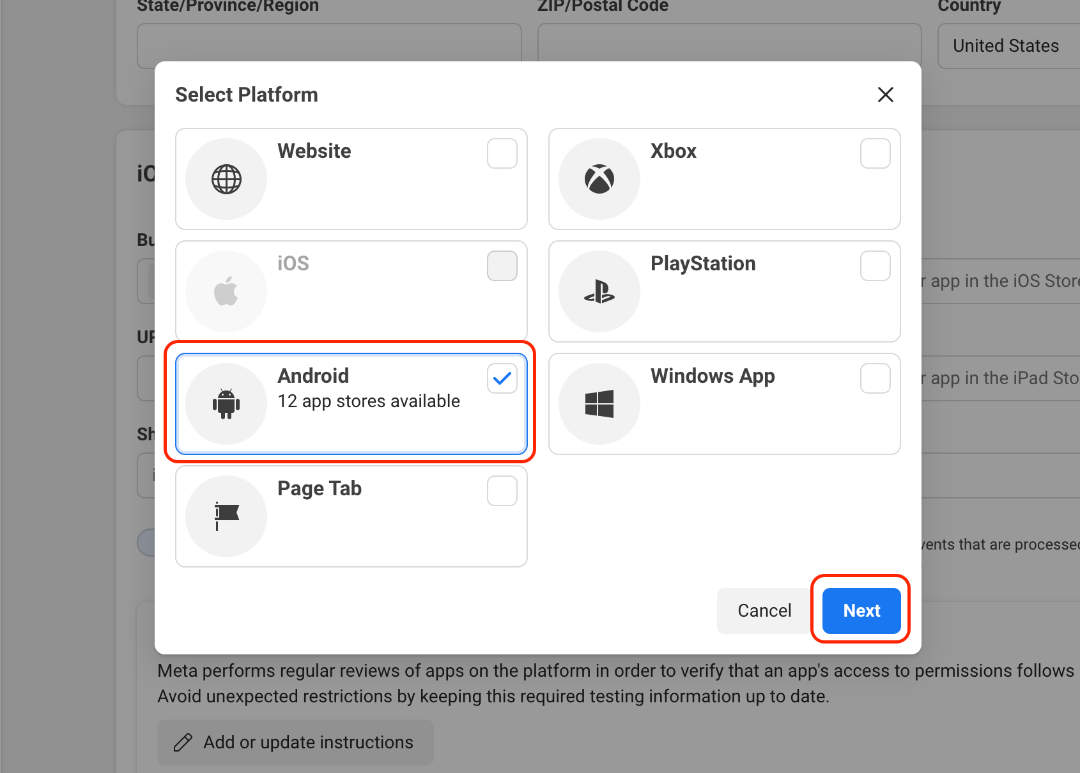
B: Add an Android app platform.
- Select the Android platform.
- Next
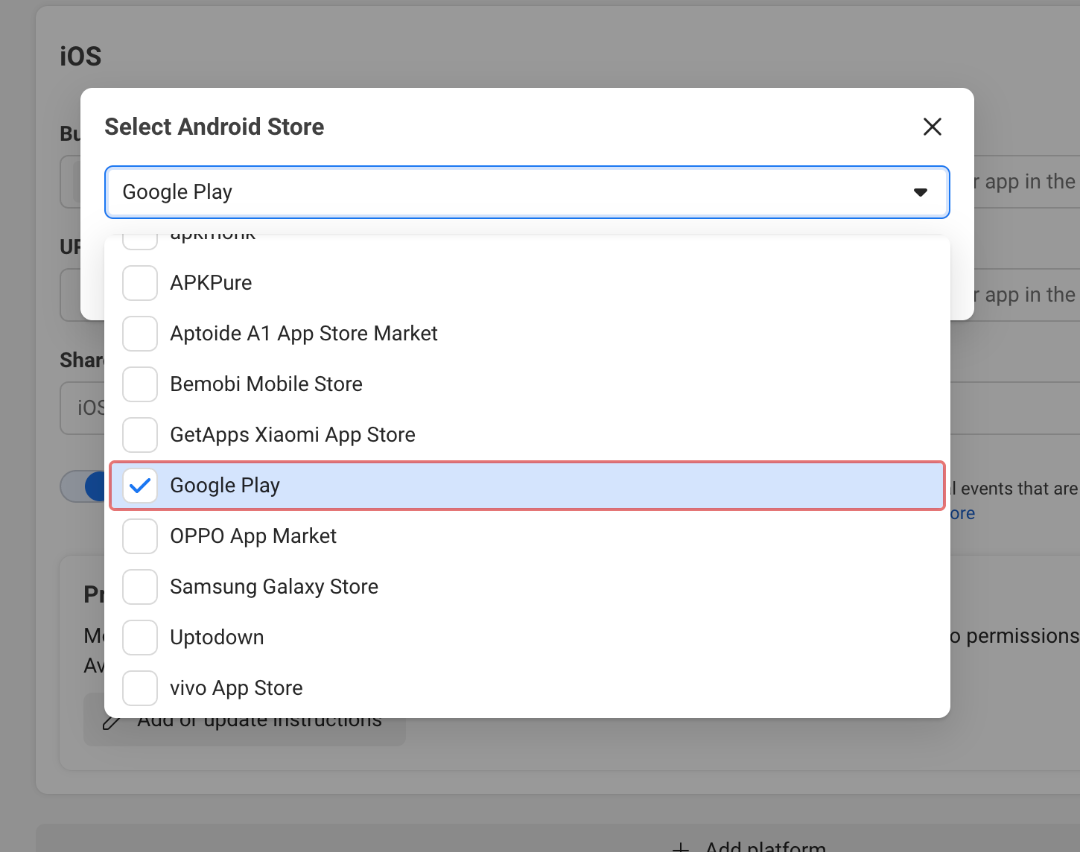
- Select Google Play
- Next
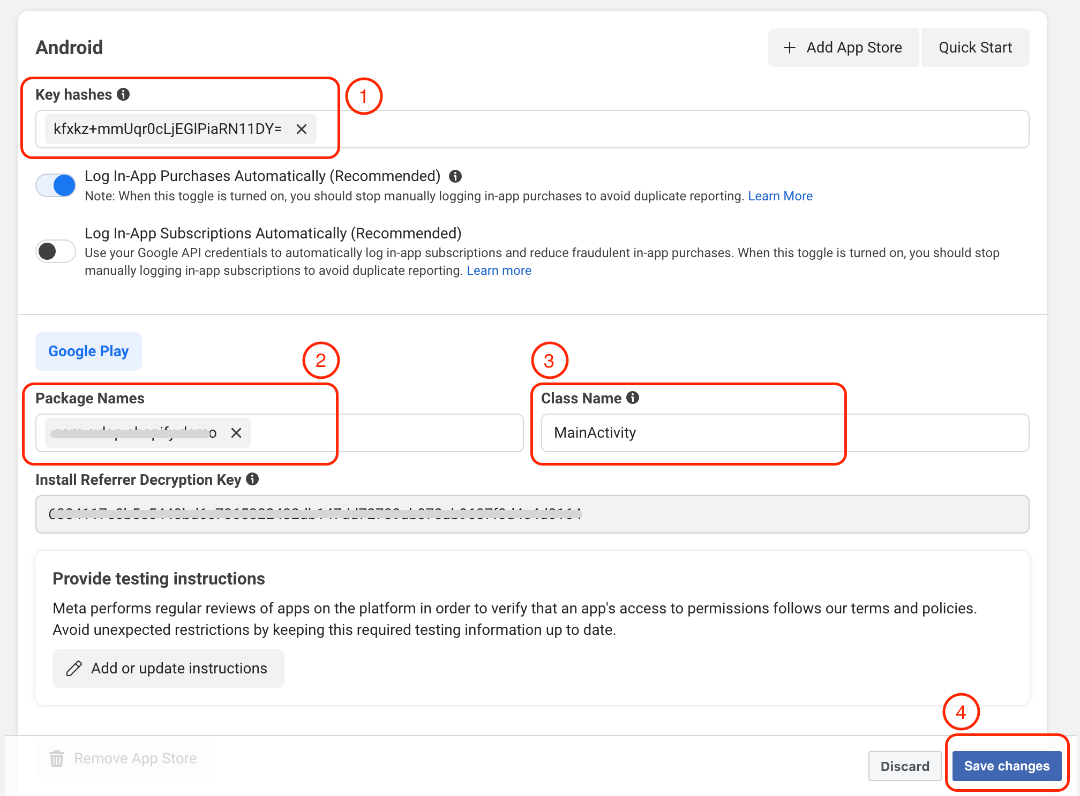
- Fill up the Key Hashes
Use this key hashes:kfxkz+mmUqr0cLjEGlPiaRN11DY= - Your Android app package name.
Google play console> Select app> you can now find package name bellow your app name
orEvlop mobile app's shopify dashboard> App settings> App info> Android Package Name - Class name
Use this class name:MainActivity - Save changes
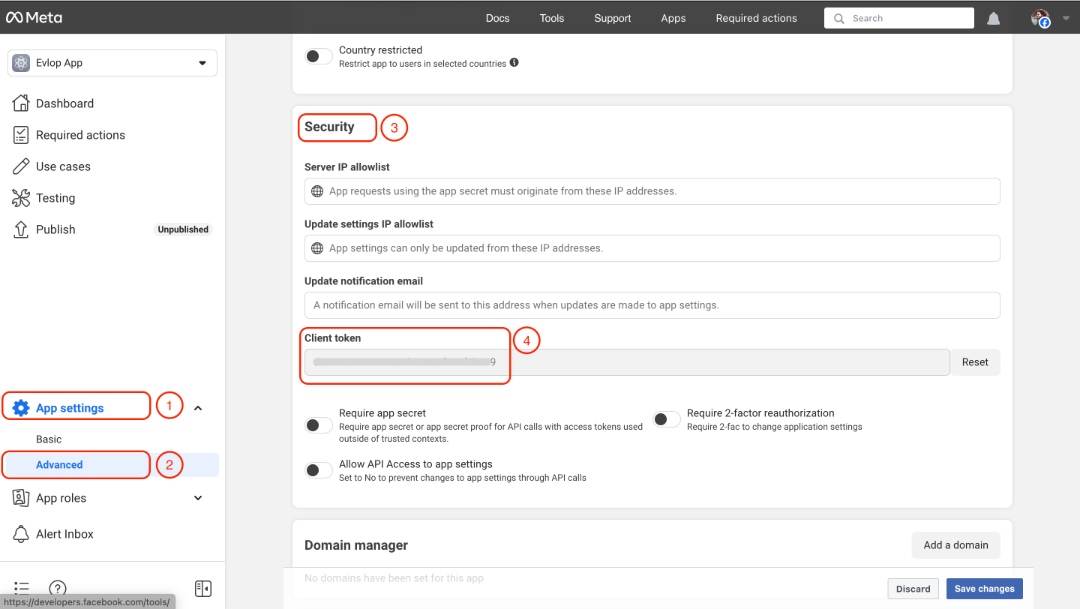
Step 3: Get the Client token
- App Settings
- Advanced
- Navigate to the Security section
- Copy the client token
Step 4: Publish your Facebook developer app.
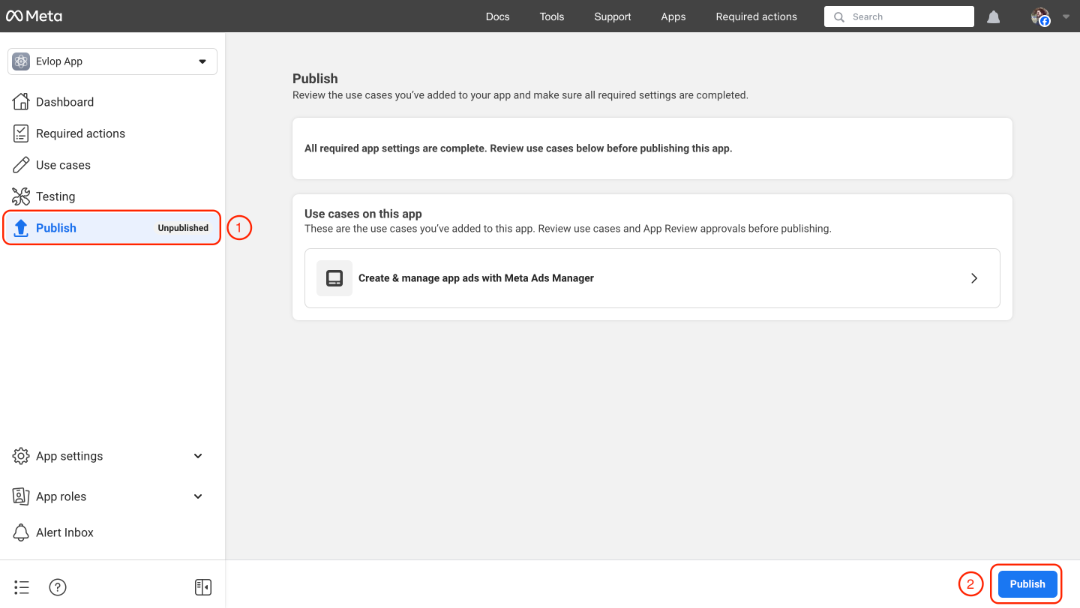
- Go to the Publish page.
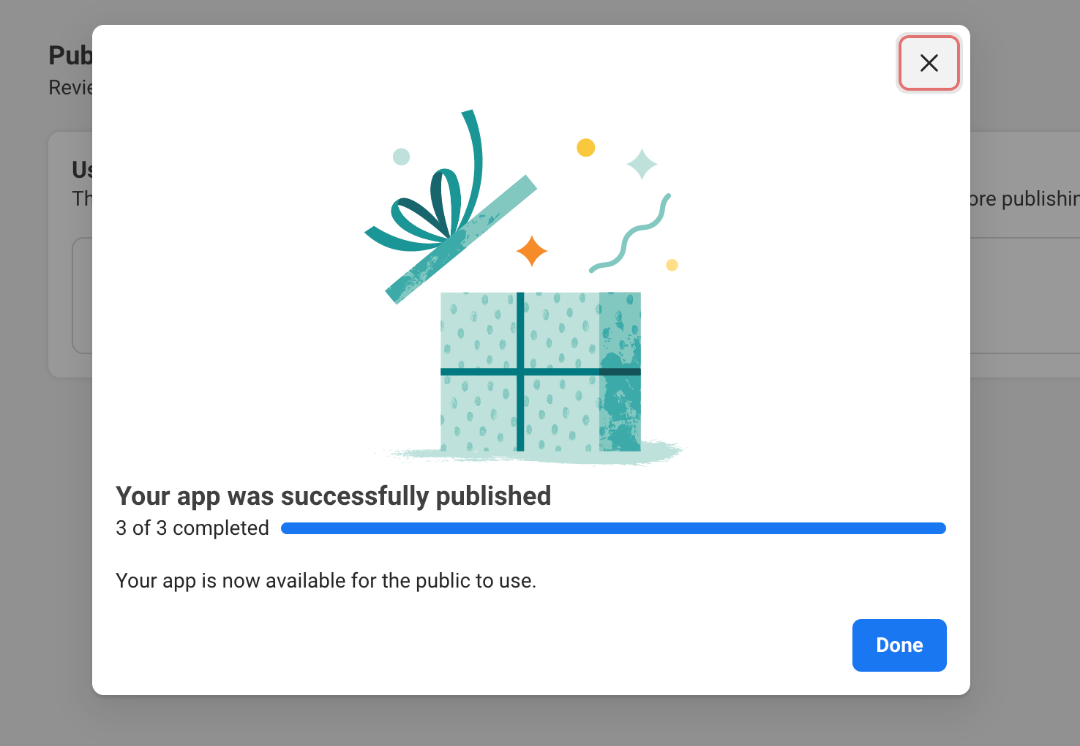
- Click Publish to publish your app
Step 5: Enable and configure the Facebook SDK Integration.
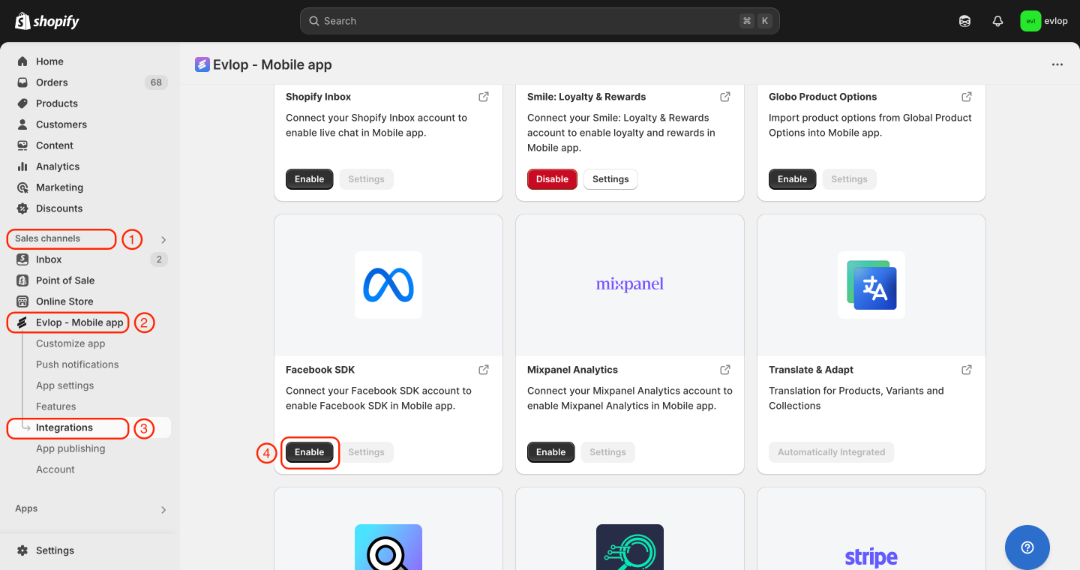
- Go to the Sales channel section of your Shopify dashboard.
- Select evlop mobile app
- Open the Integrations page.
- Navigate to Facebook SDK
- Enable the Facebook SDK Integration
- Fill up your App name
- Paste your Facebook App ID (From Step 2)
- Paste your App's Facebook client token (From Step 3)
- Save the changes
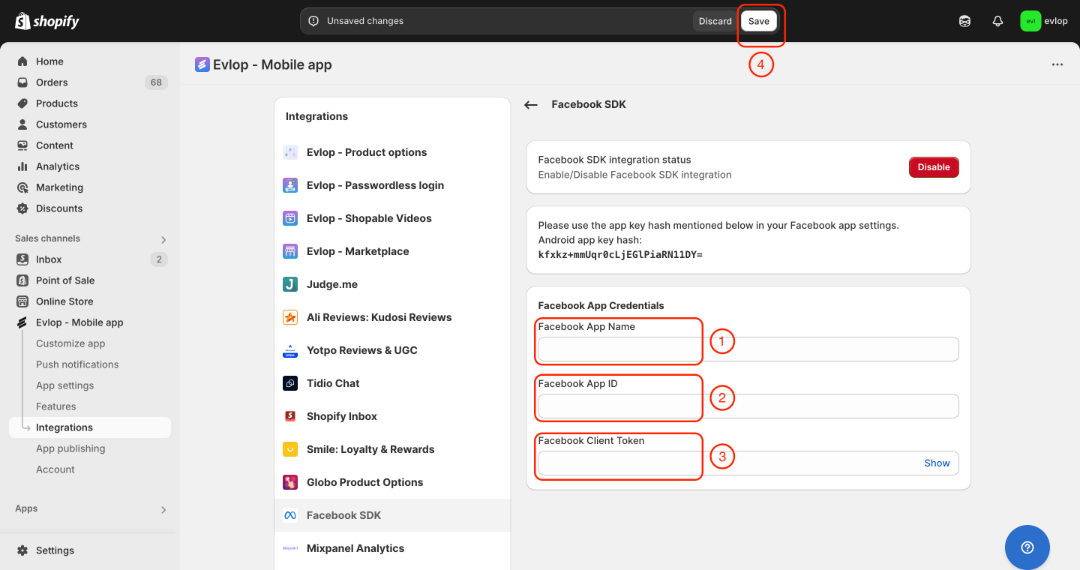
The integration process between the Evlop mobile app and Facebook SDK has been completed.
Note:
- Once you finish the setup, you will need to request new app builds (for iOS and Android) to update your app on the Apple App Store and Google Play Store.
- This update must be live for the integration to work.
- After your app is live, it can take 24 to 48 hours for events to show up in your Meta account.