Follow these steps to enable new customer accounts with your Email - Mobile app.
1. Install & Configure Headless
- Install Headless app from Shopify application store.
- In Shopify admin → Sales channels
- Open Headless → Add storefront.
- Click Manage next to Customer Account API.
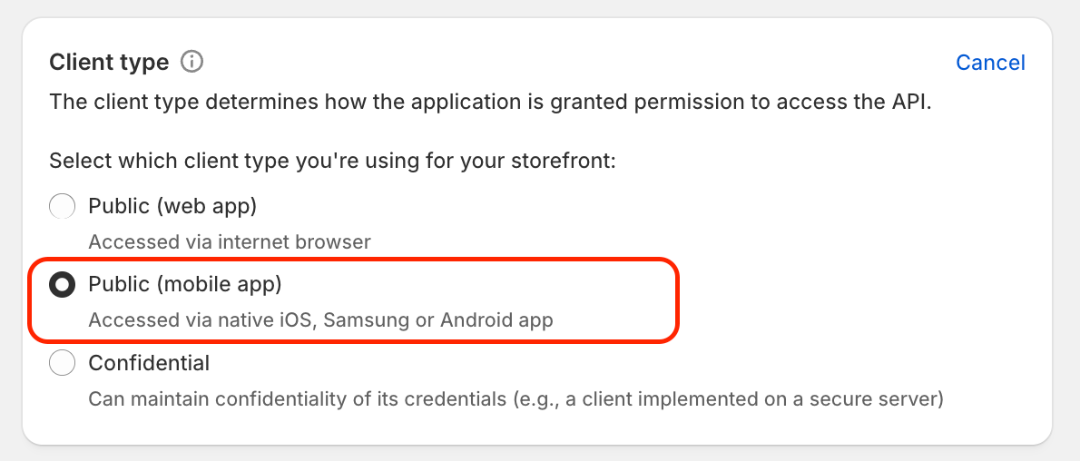
- Select Client type → Public (mobile app)
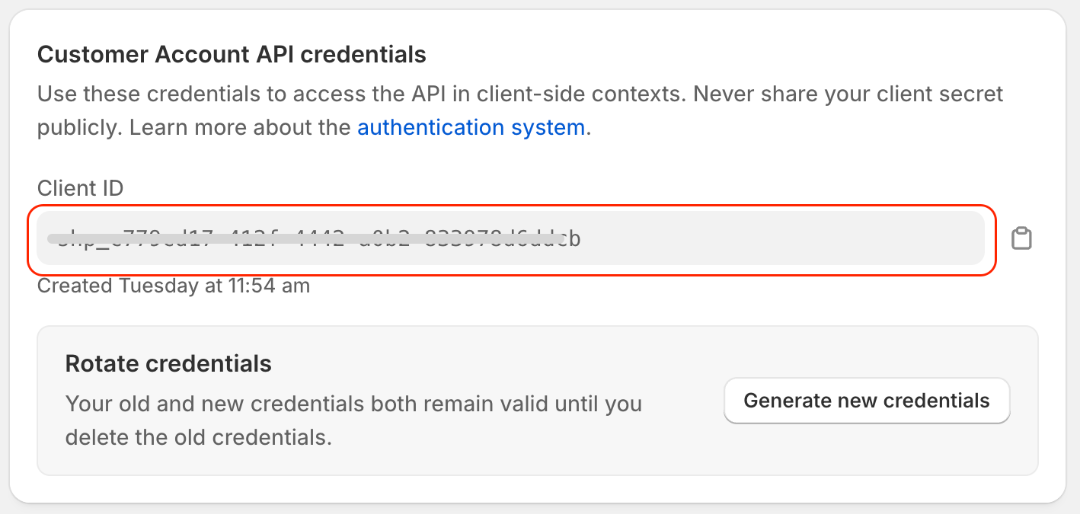
- Copy Client ID from Customer Account API credentials
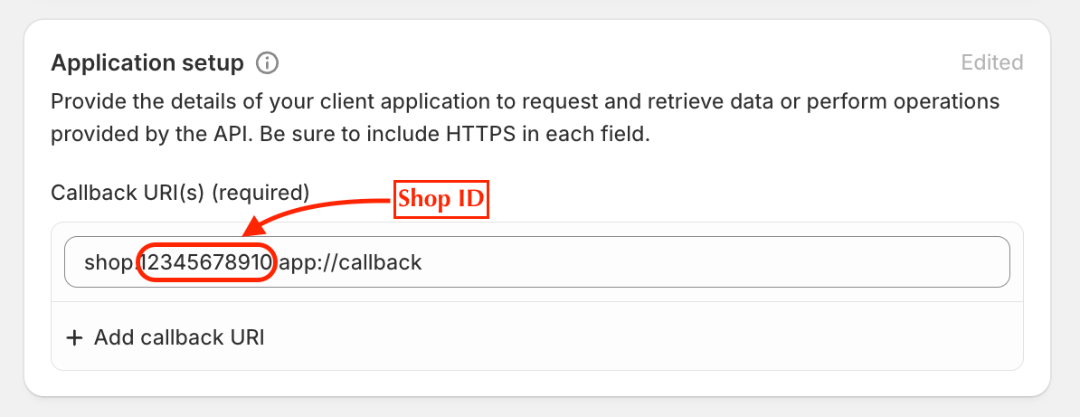
- Copy Shop ID from the Application setup > Callback URI(s).
shop.<shopID>.app://callback
2. Add OAuth Callback URI(s)
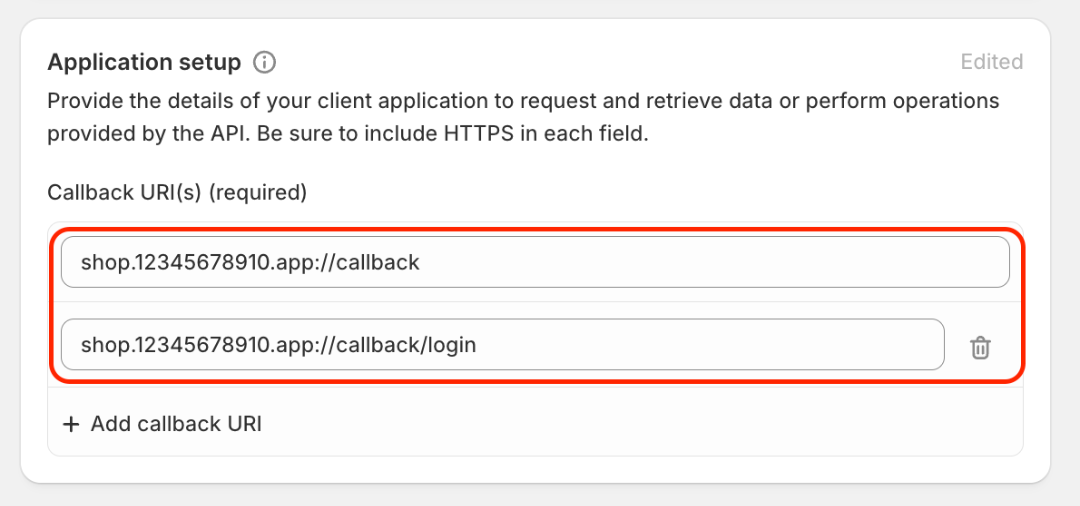
In the same Headless settings, under Application setup, you will see a Call back URI in this format.
shop.<shopID>.app://callback
- Copy the URI
- Add a new call back URI
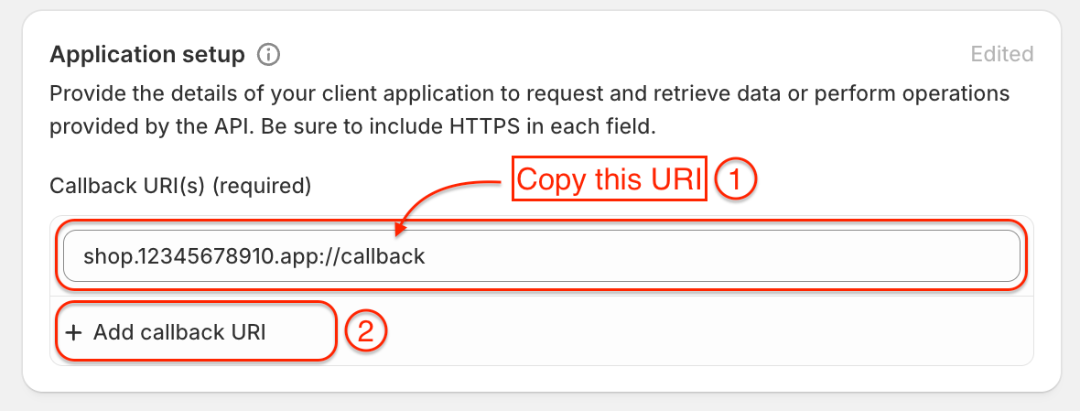
- Paste the copied URI
- And type
/loginat the end. it should look like →shop.<shopID>.app://callback/login
3. Configure evlop mobile to use new customer account
- In Evlop dashboard → Features → Customer Accounts .
- Set Customer account type to New customer account.
- Paste your Shop ID and Client ID inside New customer account API credentials.
- Select Client type to Mobile app
- Save changes.
Note: It's recommended that you request and publish new app updates to the application stores (Apple App Store and Google Play Store) for better functioning of New Customer Accounts on your mobile app.