What is the Embedding Website Pages feature?
The Embedding Website Pages feature in Evlop enables you to integrate key web pages from your website directly into your native mobile app. Instead of spending time and resources on designing and developing separate app page layouts for content you already have online, you can simply embed those web pages.
This feature allows you to replace specific important pages in your app with an optimized web view of your website pages. This feature is more beneficial if you have custom designs and advanced integration features implemented for certain pages, such as landing pages and product detail pages (PDP), that you wish to showcase in your app. By embedding these web pages, you can present them within your app without incurring additional custom development costs for those implementations.
This feature ensures a consistent user experience and significantly streamlines your app development process. The embedded web pages are well-optimized and seamlessly integrated with the app's functionality, making them look and feel like a complete native app.
Web pages available for embedding:
- Landing page (Homepage)
- All products page
- Product details page
- Collections page
- Collection products page
How to Enable 🟢 Embedding Website Pages Feature?
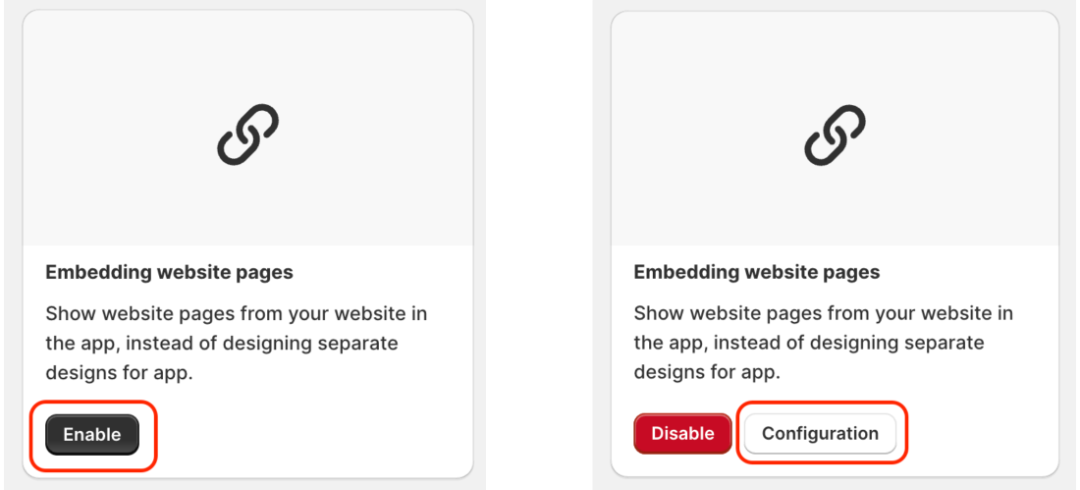
- On the Features page of your Evlop Mobile App's Shopify Dashboard, locate and enable the 'Embedding Website Pages' feature. Then, use the Configuration options to select pages that you want to replaced with the optimized web pages for mobile app.
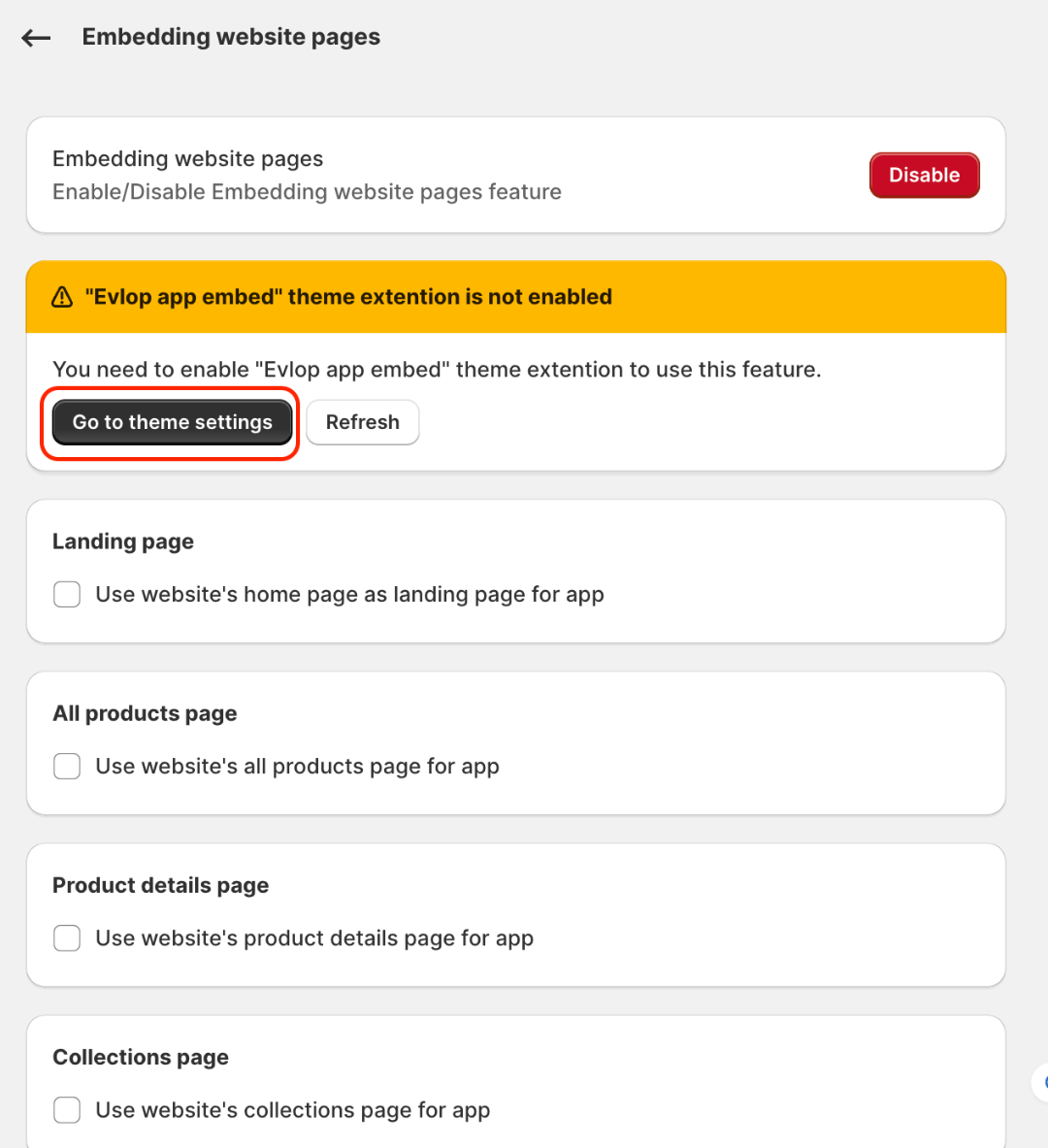
- Under configuration you may first need to enable the evlop app embed for evlop mobile app if you have not already enabled for other features.
- Select the pages you want to be replaced with the optimized web view of your website pages.
Here in this example configuration page, we have just selected two pages i.e., Landing page (Homepage) and the Product Details Page (PDP), you can select all 5 pages if you wish to.
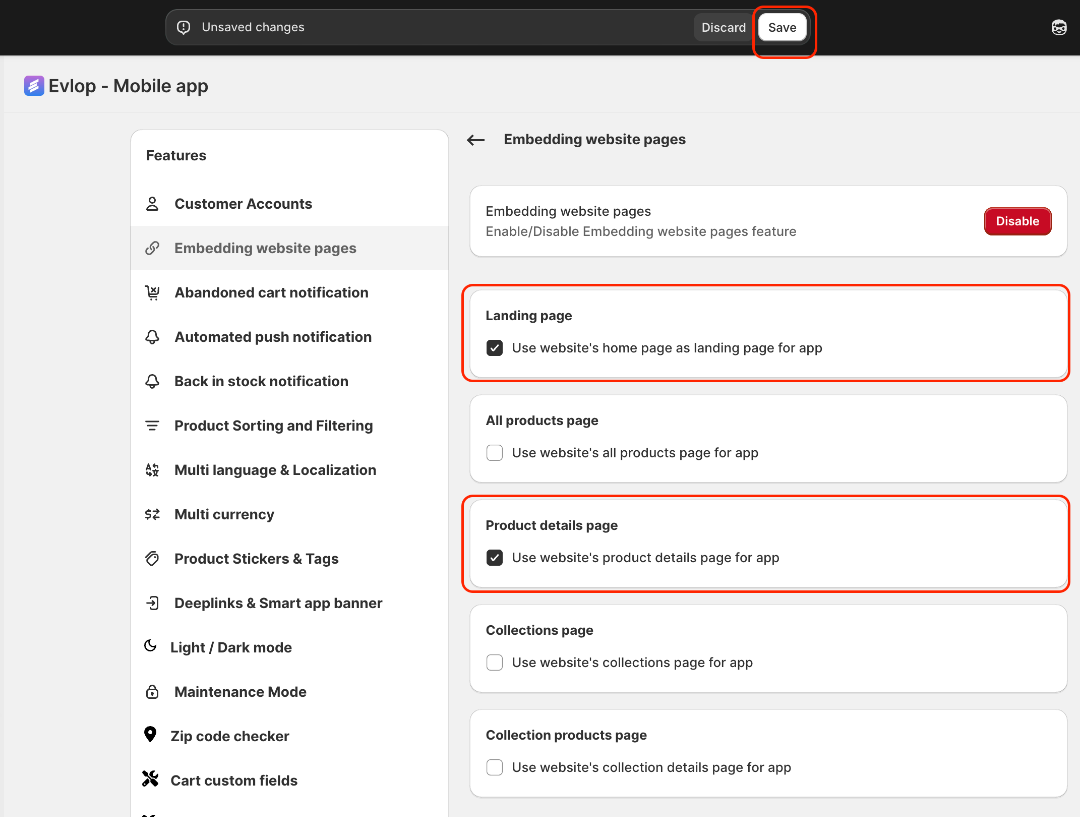
- Save the changes.
That's we need under the configuration.
For the changes to take effect, you'll need to restart your installed app.
Alternatively, you can quickly preview the updates directly within the Evlop Shop app (device preview) on your device.