Step 1: Get the APN (Apple Push Notification) Key.
- Login to the 👉 Apple Developer Profile.
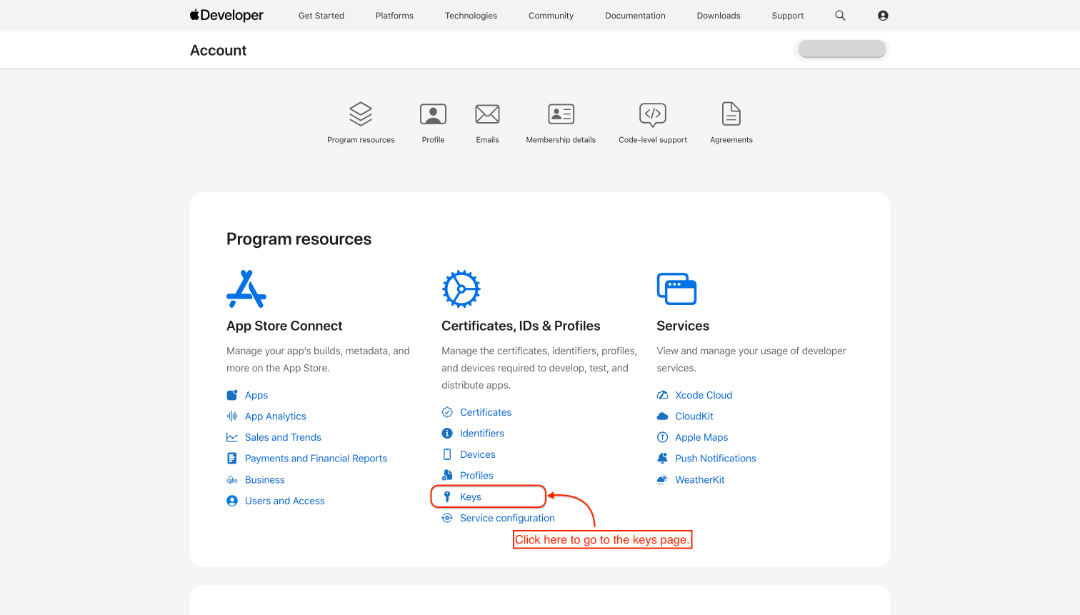
- Go to the Keys page
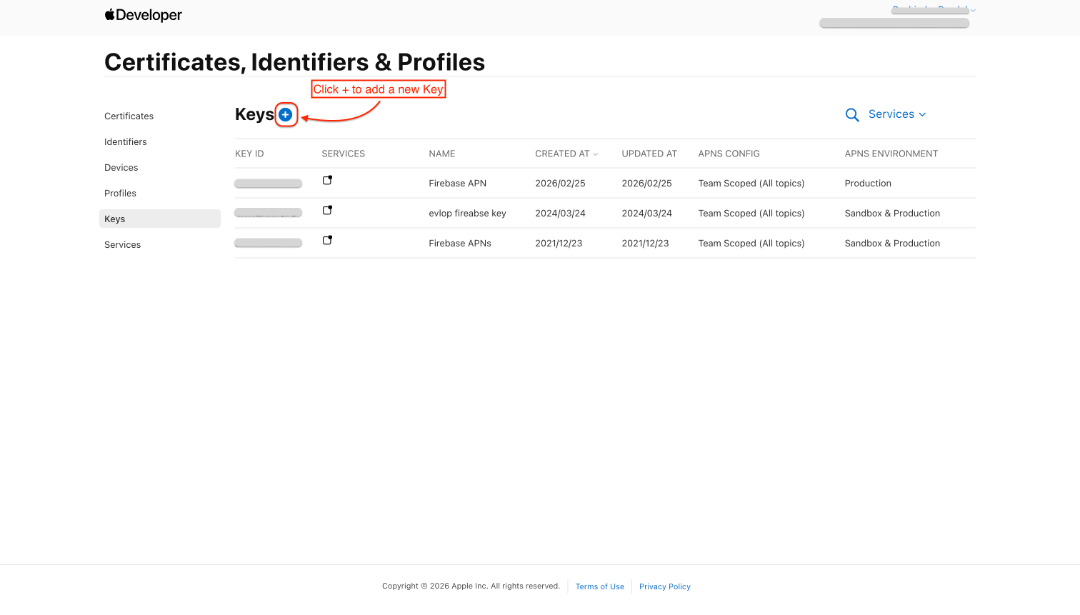
- Click '+' to add a new key.
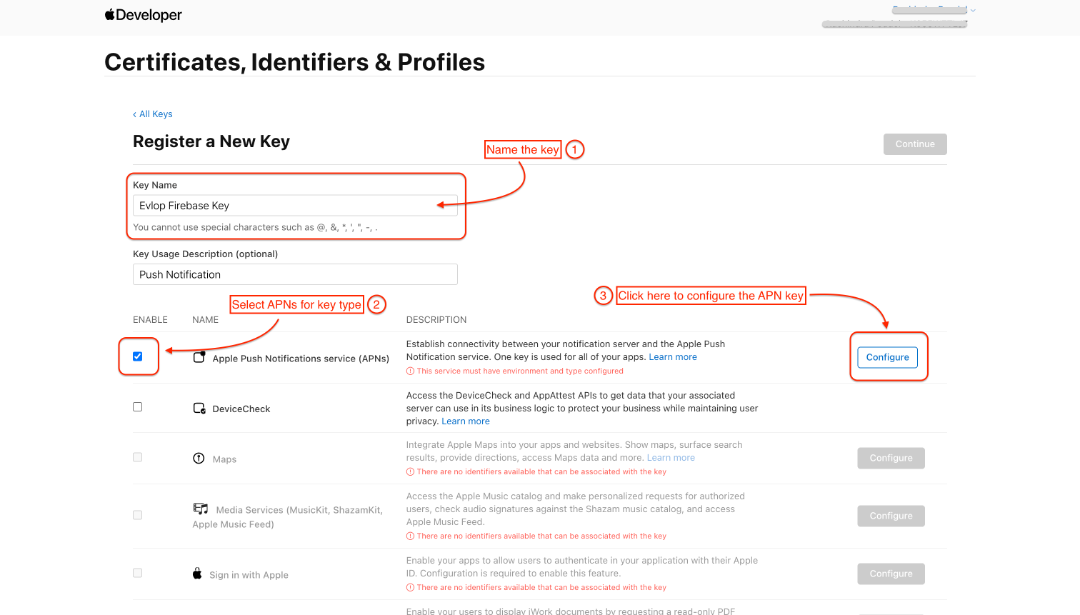
- Name the key
- Check ☑️ Apple Push Notifications Service (APNs),
- And click Configure.
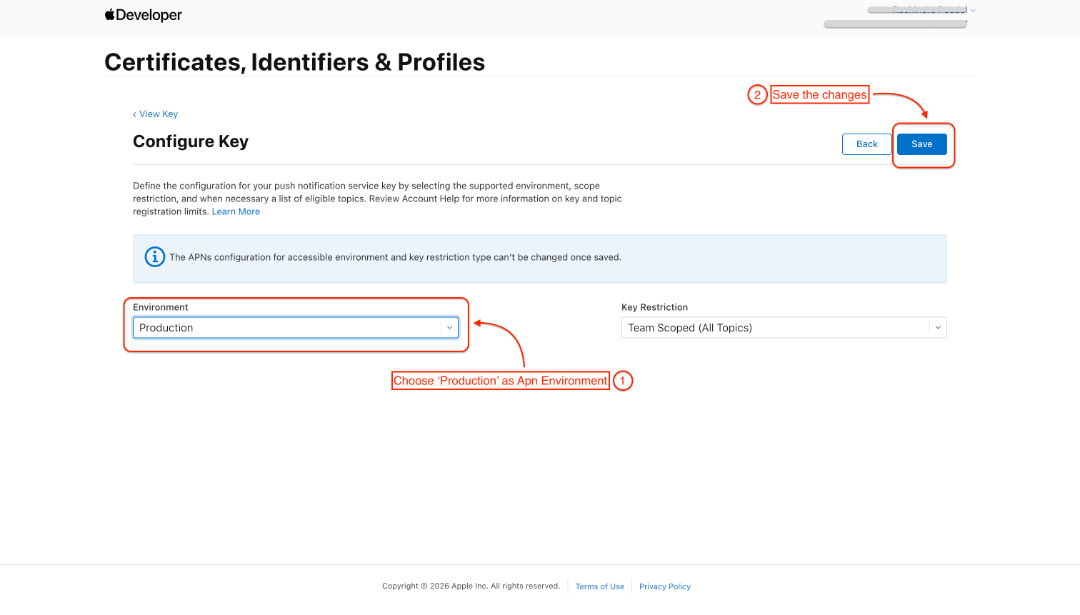
- Choose Production as APN environment
- Save the
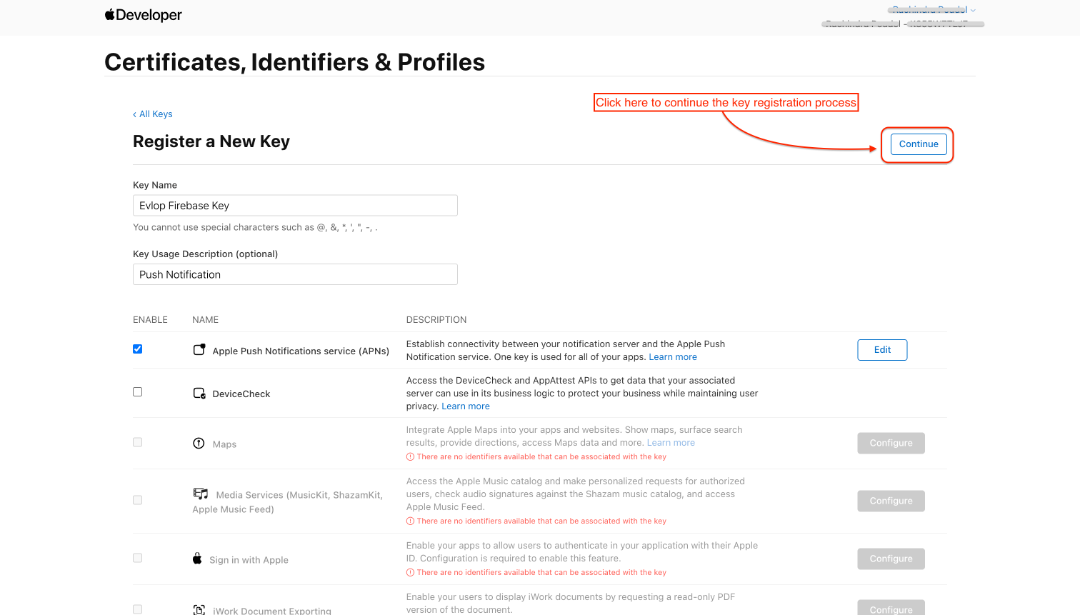
You will be redirected back to the Key registration section on the Certificates, Identifiers & Profiles page.
- Click continue
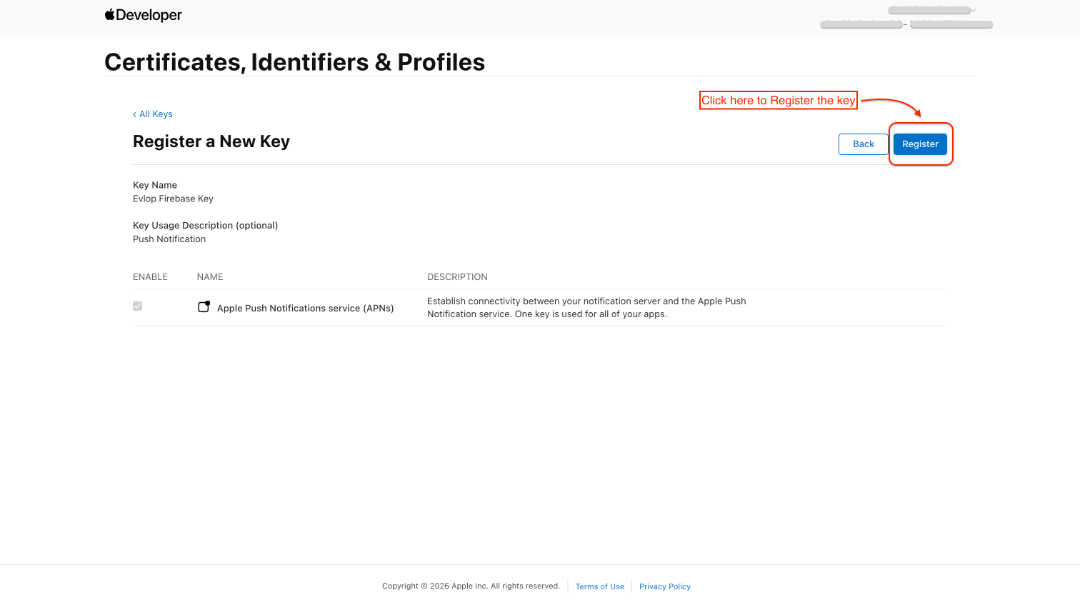
- Register the key
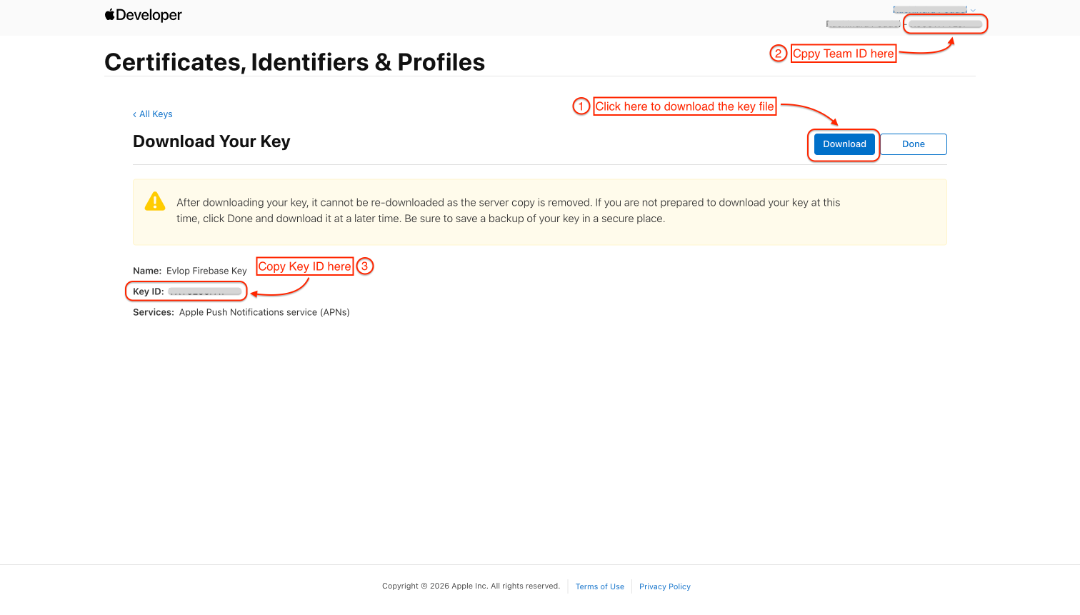
- Download the key file
- Copy Team ID (Top right corner of the same page)
- Copy Key ID
Step 2: Apple Cloud Messging Setup
- Go to the Firebase Console.
- Get into your app project
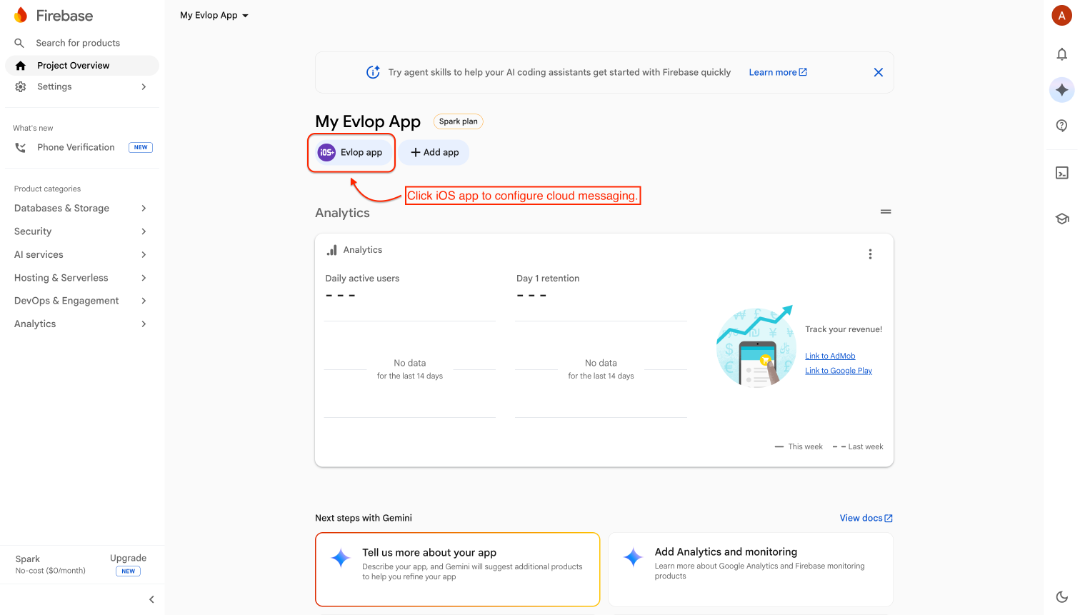
- Click Cloud Messaging tab under the Project settings
- Navigate to APNs Authentication Key section under Apple app configuration Block.
- Find the section with No production APNs auth key
- Click Upload
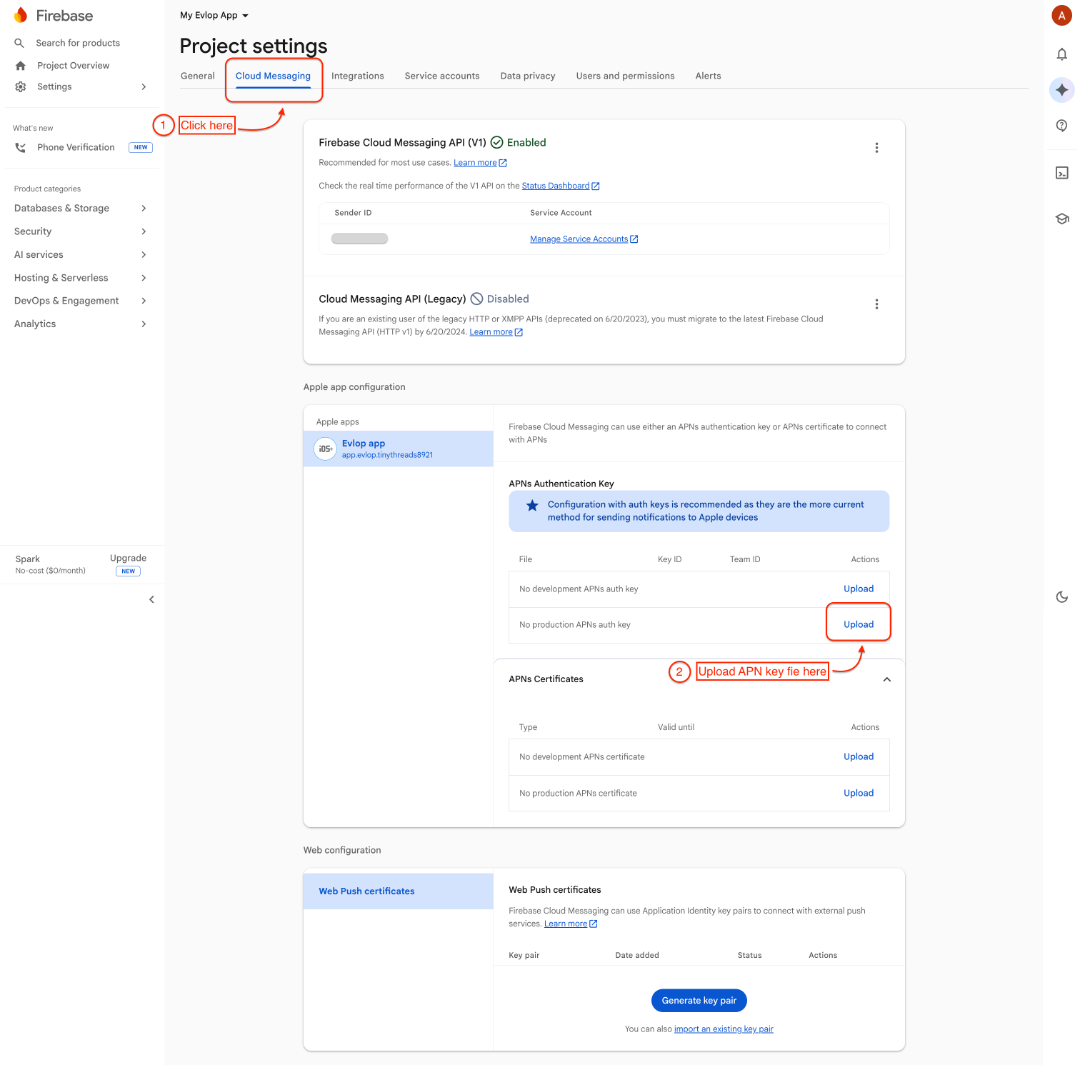
- Upload APNs auth key
- Paste Key ID/ Team ID
- Click Upload to submit the APN key file and credentialsYou’re now successfully connected Apple Developer Account with Firebase.
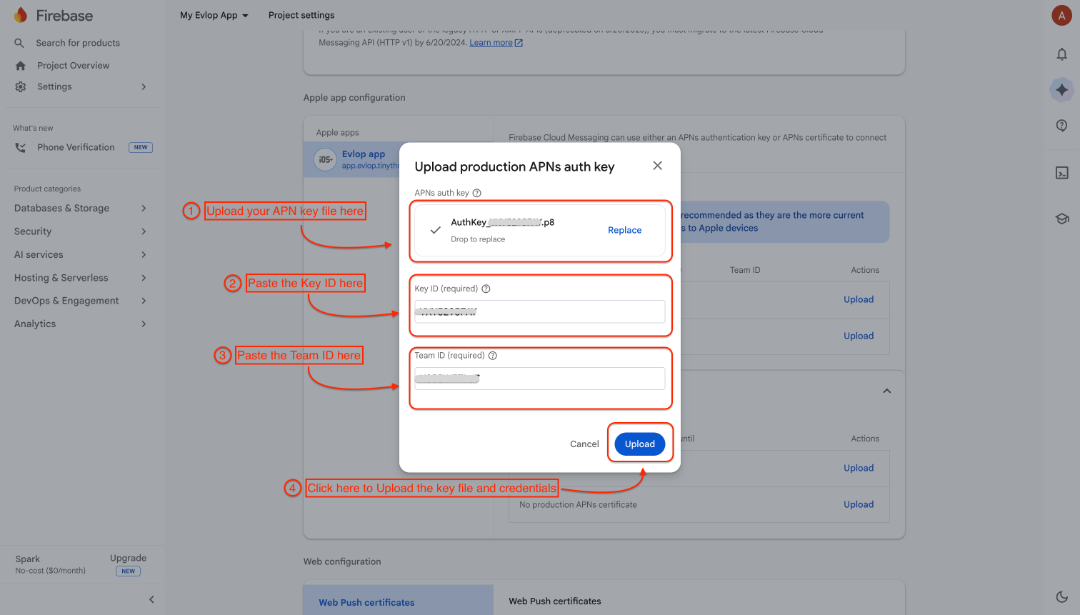
With this, Apple Cloud messaging is configured successfully.
You can go to Android Apps for Apple firebase connection and Firebase admin SDK for connecting your firebase with your evlop app dashboard.