1단계: APN(Apple Push Notification) 키 발급받기.
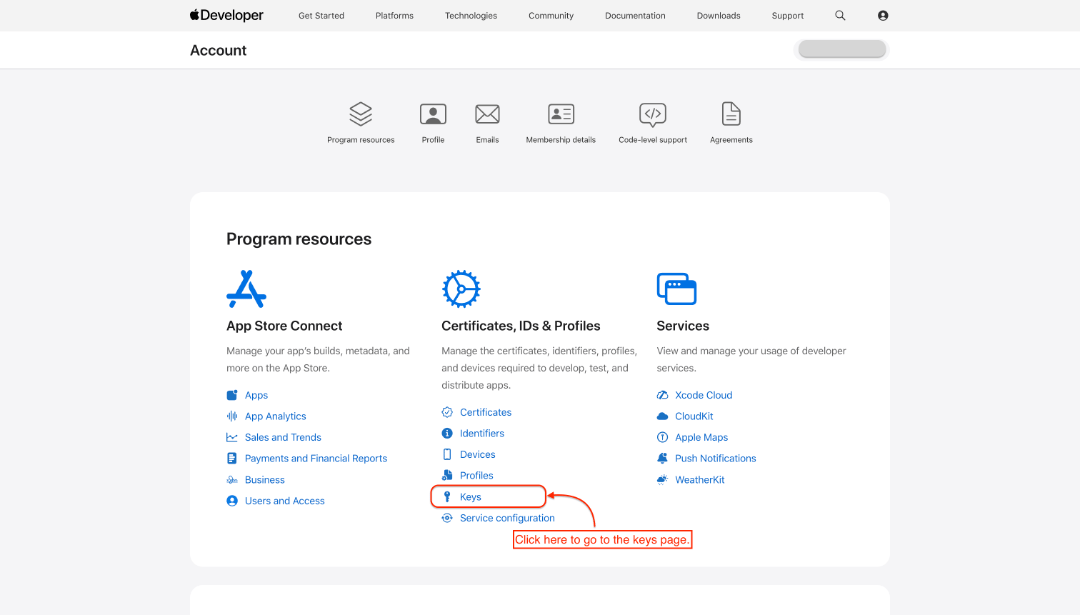
- 👉 Apple Developer Profile에 로그인하세요.
- Keys 페이지로 이동하세요
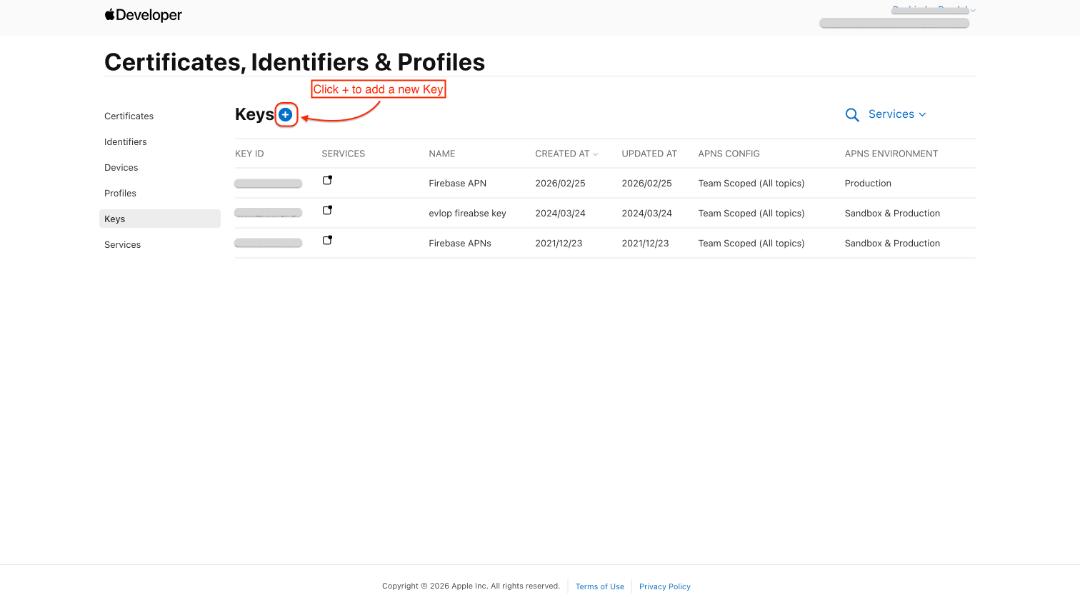
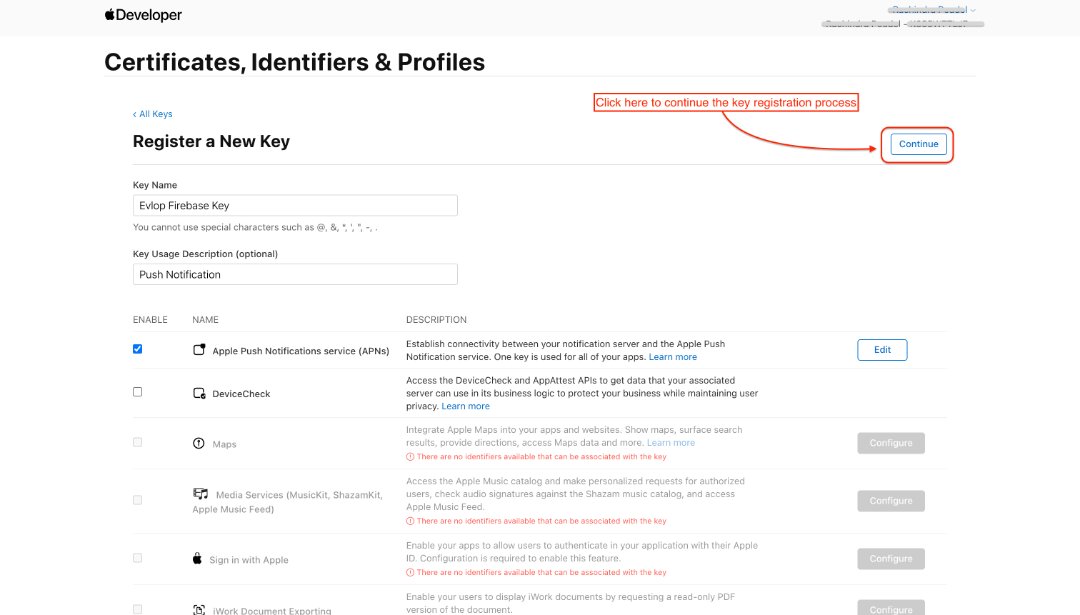
- '+'를 클릭해 새 키를 추가하세요.
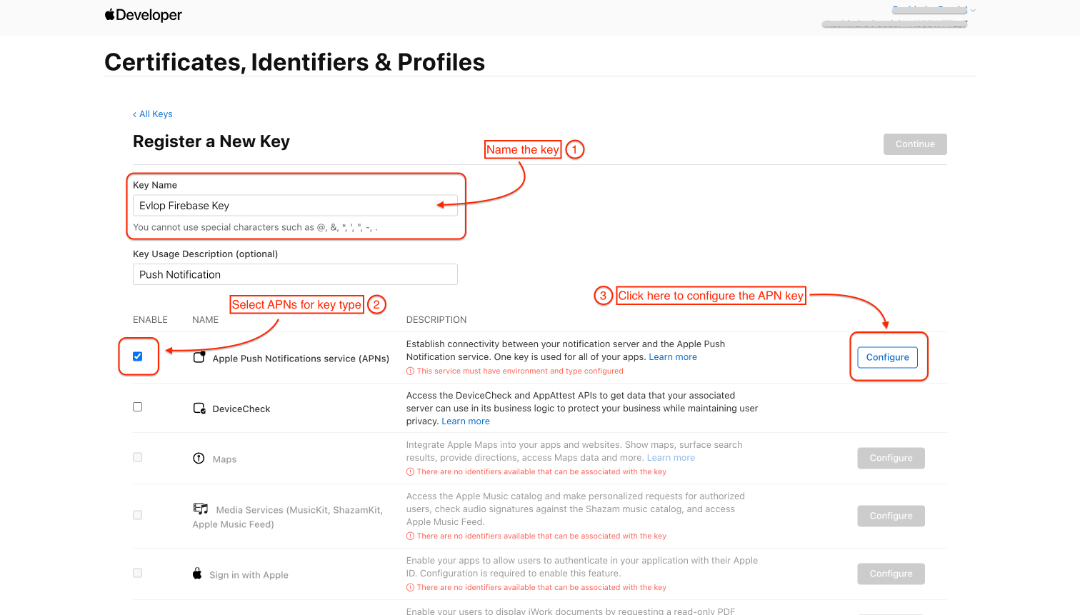
- 키 이름을 입력하세요
- ☑️ Apple Push Notifications Service (APNs)를 체크하세요,
- 그리고 Configure를 클릭하세요.
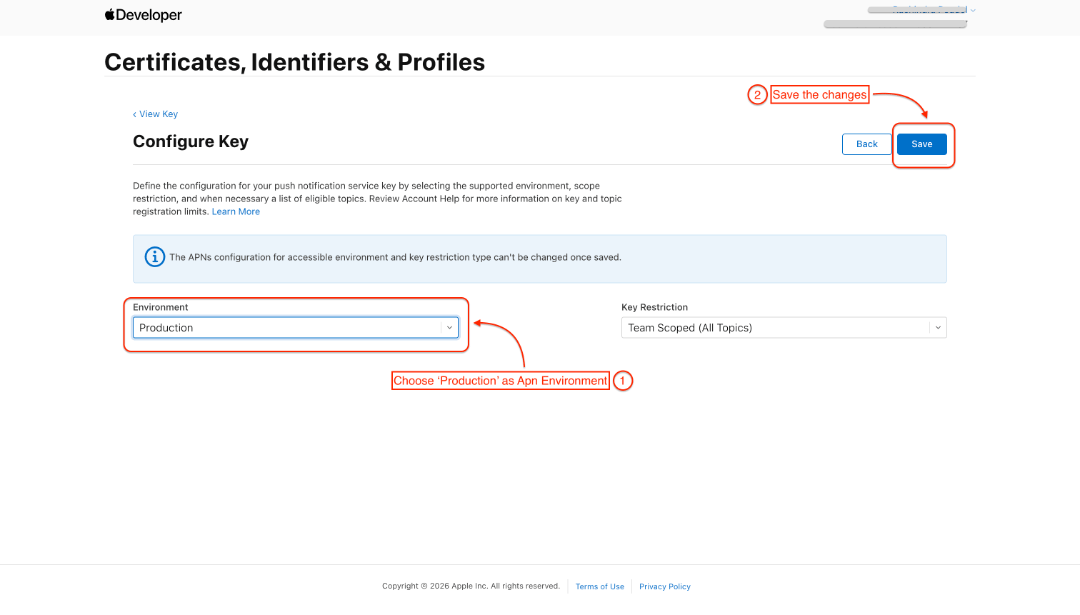
- APN 환경으로 Production을 선택하세요
- 저장하세요
Certificates, Identifiers & Profiles 페이지의 Key registration 섹션으로 다시 이동됩니다.
- continue를 클릭하세요
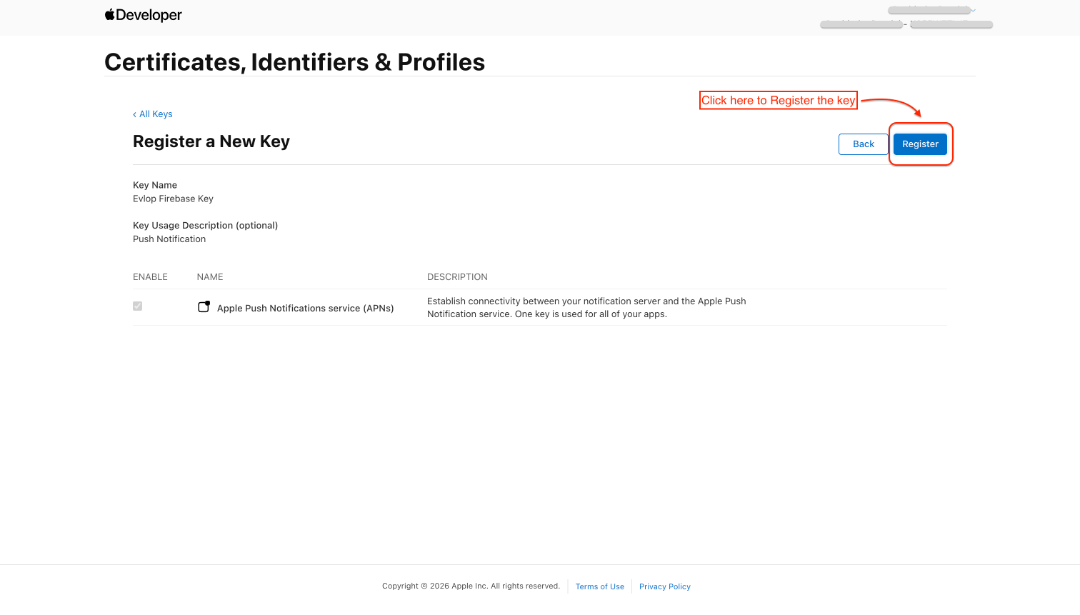
- 키를 Register하세요
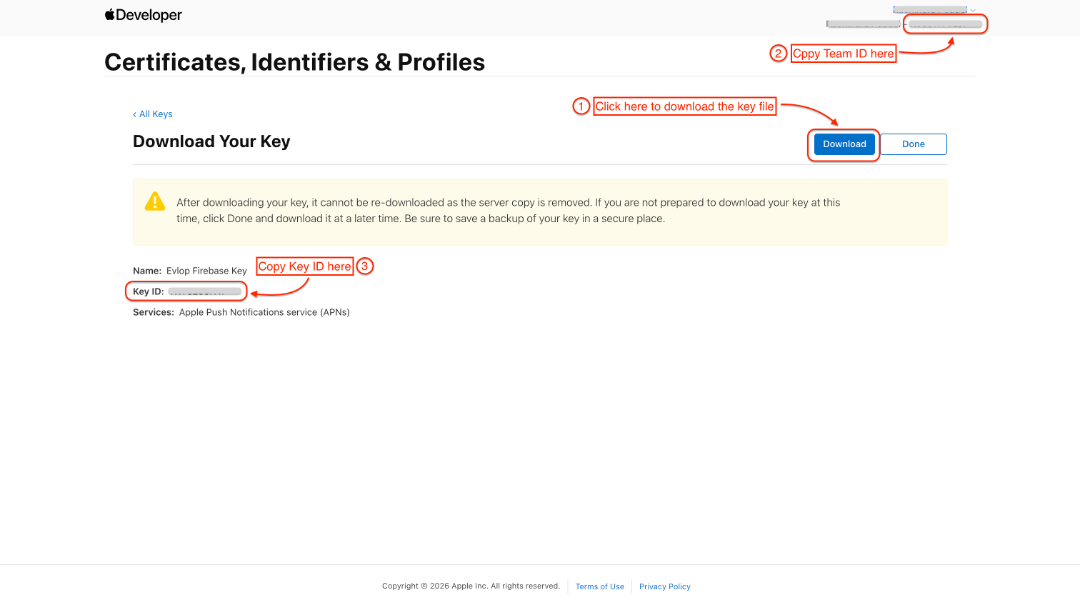
- 키 파일을 다운로드하세요
- Team ID를 복사하세요 (같은 페이지 오른쪽 상단)
- Key ID를 복사하세요
2단계: Apple Cloud Messging 설정
- Firebase Console으로 이동하세요.
- 앱 프로젝트에 들어가세요
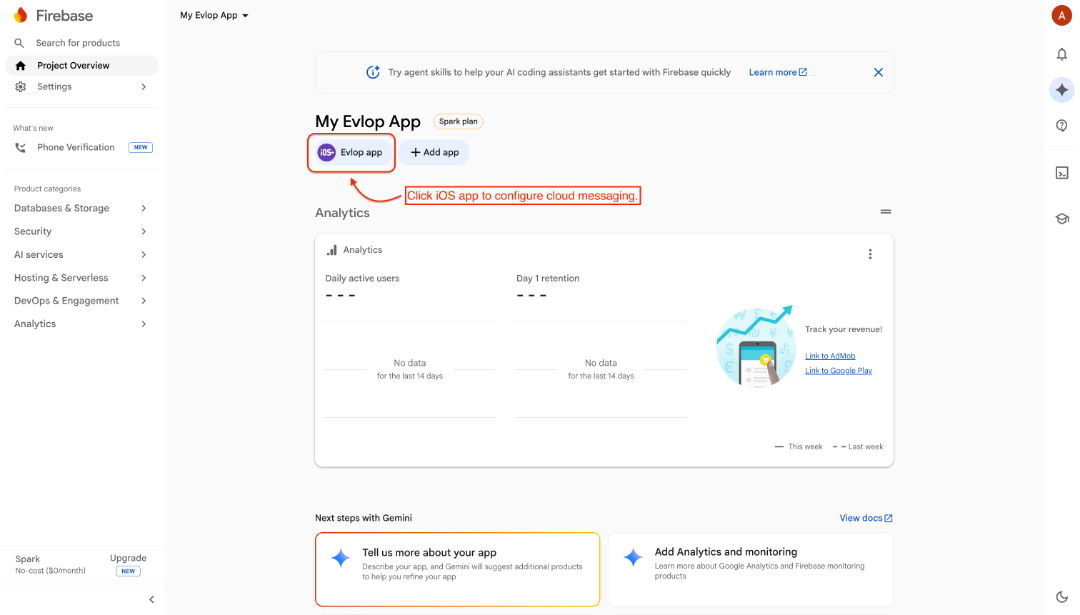
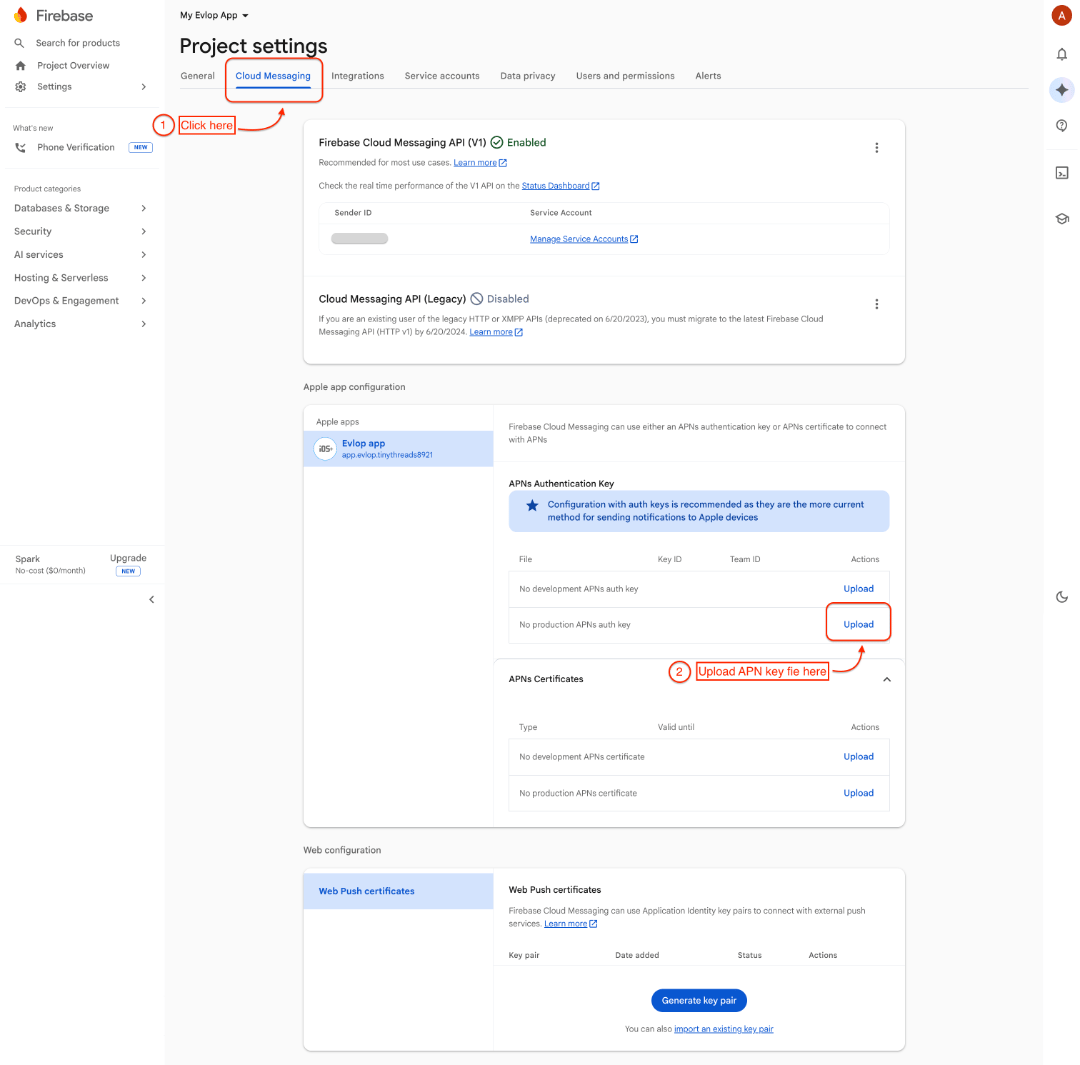
- 프로젝트 설정 아래의 Cloud Messaging 탭을 클릭하세요
- Apple 앱 구성 블록 아래의 APNs Authentication Key 섹션으로 이동하세요
- No production APNs auth key 섹션을 찾으세요
- Upload를 클릭하세요
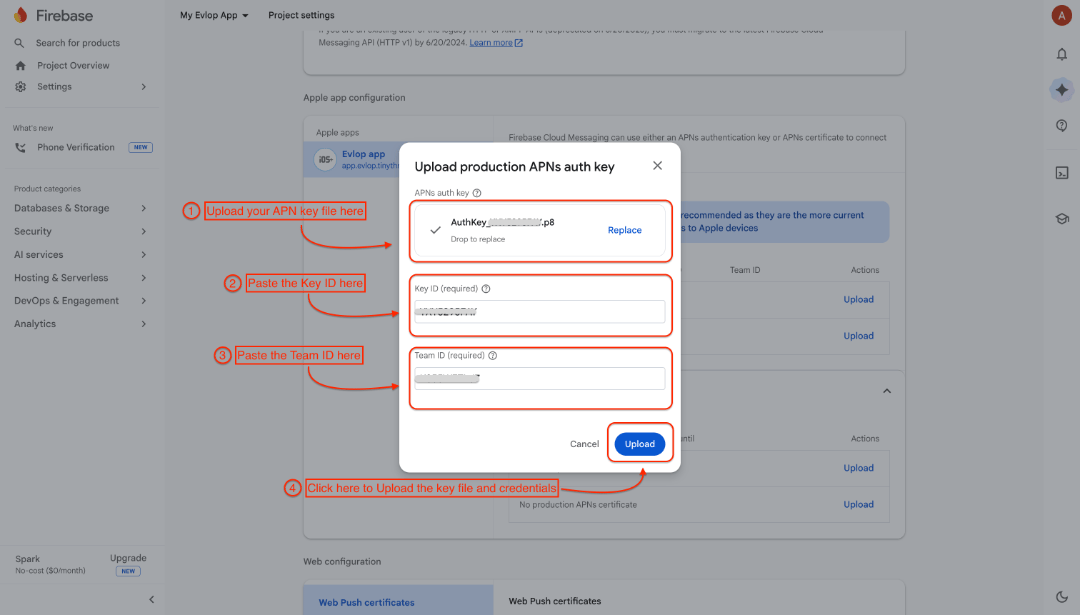
- APNs 인증 키를 업로드하세요
- Key ID와 Team ID를 붙여넣으세요
- Upload를 클릭하여 APN 키 파일과 자격 증명을 제출하면 Apple Developer 계정과 Firebase가 성공적으로 연결됩니다
이제 Apple 클라우드 메시징이 성공적으로 구성되었습니다.
Apple Firebase 연결은 Android Apps에서, Evlop 앱 대시보드와 Firebase를 연결하는 방법은 Firebase admin SDK 문서를 참고하세요.