Stap 1: Maak een Service Account.
A. Google Cloud Project
- Ga naar je Google Cloud Console-pagina.
- Accepteer de Servicevoorwaarden
- Selecteer een project/maak een nieuw project
Zo maak je je project aan in de Google Cloud Console.


Je project is nu aangemaakt, laten we een service account maken.
B. Service Account
- Open een zijbalk.
- Klik op IAM & Admin
- Klik op Service Accounts.

- + Serviceaccount aanmaken

- Details van serviceaccount

- Rol van serviceaccount

- Geef het serviceaccount een eigenaarrol.

- Serviceaccount aangemaakt met een eigenaarrol.

C. Private sleutel voor je Evlop mobiele app.
- Ga naar het Actie‑menu.
- Klik op Beheer Sleutels

- Klik op de ‘Add key’ dropdown.
- Klik op ‘Create new key’

- Selecteer ‘JSON’ bestandsformaat.
- Aanmaken

- De privésleutel is nu opgeslagen op je computer.

Stap 2: Play Store API inschakelen
We hebben de stap voltooid om het serviceaccount aan te maken en hebben ook de privésleutel gedownload die we nodig hebben om met Evlop te verbinden; laten we nu verder gaan met het inschakelen van de Play Store API.
- Ga terug naar de Service Accounts pagina.

- Kopieer de serviceaccount e‑mail‑ID voor de volgende stap.

- Klik op het hamburgermenu
- Klik ‘APIs & Services’
- Klik ‘Enabled APIs & services’

- Klik ‘+ENABLE APIS AND SERVICES’

- Scroll omlaag.
- Zoek en klik op ‘Google Play Android Developer API’

- Schakel de Google Play Android Developer API in


Google Play Android Developer API is succesvol ingeschakeld.
Stap 3: Beheerders toegang tot de serviceaccount‑e‑mail.
- Ga naar je Google Play Console.
- Ga naar de pagina Gebruikers en machtigingen in de zijbalk.
- Klik op ‘Invite New User’

- Plak het Service Account Email ID dat je eerder hebt gekopieerd.
- Klik op ‘Account Permissions’.
- Vink het vakje ‘Admin (all permissions)’ aan.
- Klik op ‘Invite User’

- Bevestig de uitnodiging

Stap 4: Verbind je Android Developer Account.
Open daarna je Shopify dashboard om Evlop te verbinden met je Android Developer Account.
Volg deze stappen:
- Klik op Evlop onder de sectie Sales Channel.
- Klik op Account.
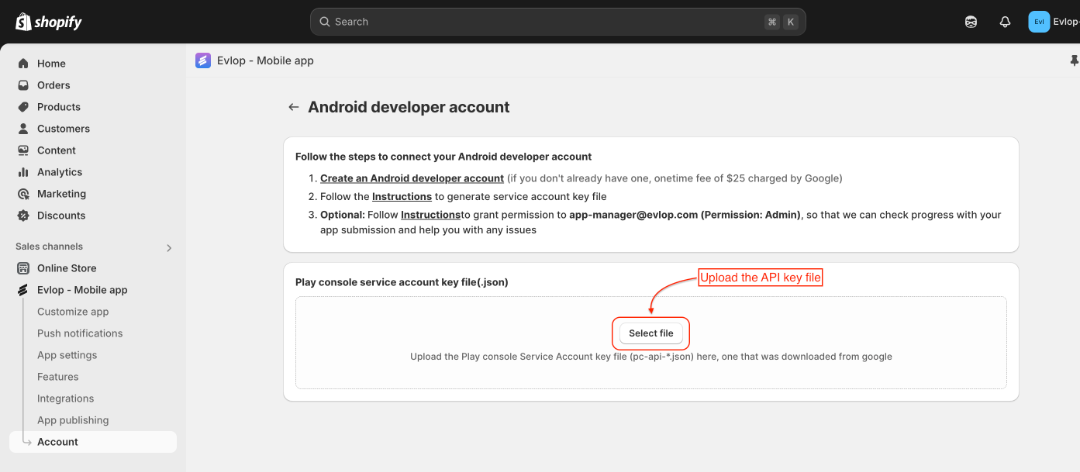
- Klik op Connect in het vakje van de sectie Android developer account.

- Upload nu het Private Key File en sla de wijzigingen op.
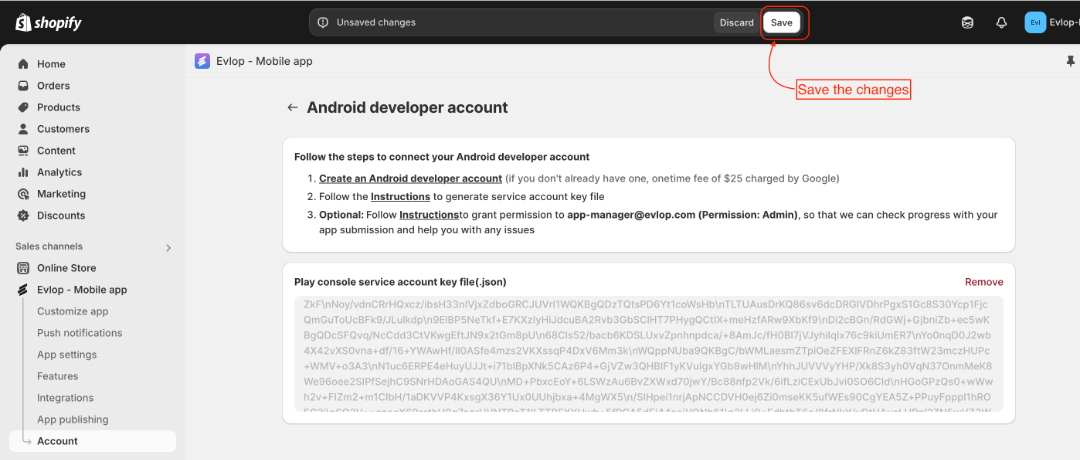

Je bent nu succesvol verbonden met het Android-ontwikkelaarsaccount en klaar om door te gaan met het Android App Publishing process.